Solar Video Studio, step by step
The Studio page is a non-linear editor laid out after Adobe Premiere Pro: projects with a bin, a Source panel with Mark In / Out, an open 20-minute sequence where clips go anywhere, Effect Controls for every clip, an Audio Clip Mixer, workspaces for 16:9 and ultrawide screens, and Export to the Queue. Everything is made on the server, exactly as the preview shows it. New here? The Convert tutorial explains uploading, presets and downloading, and the Edit tutorial the effects, sounds, subtitles and captions the Studio uses too.
Get started
1Open the Studio
- Click Studio in the switch next to the logo (or open
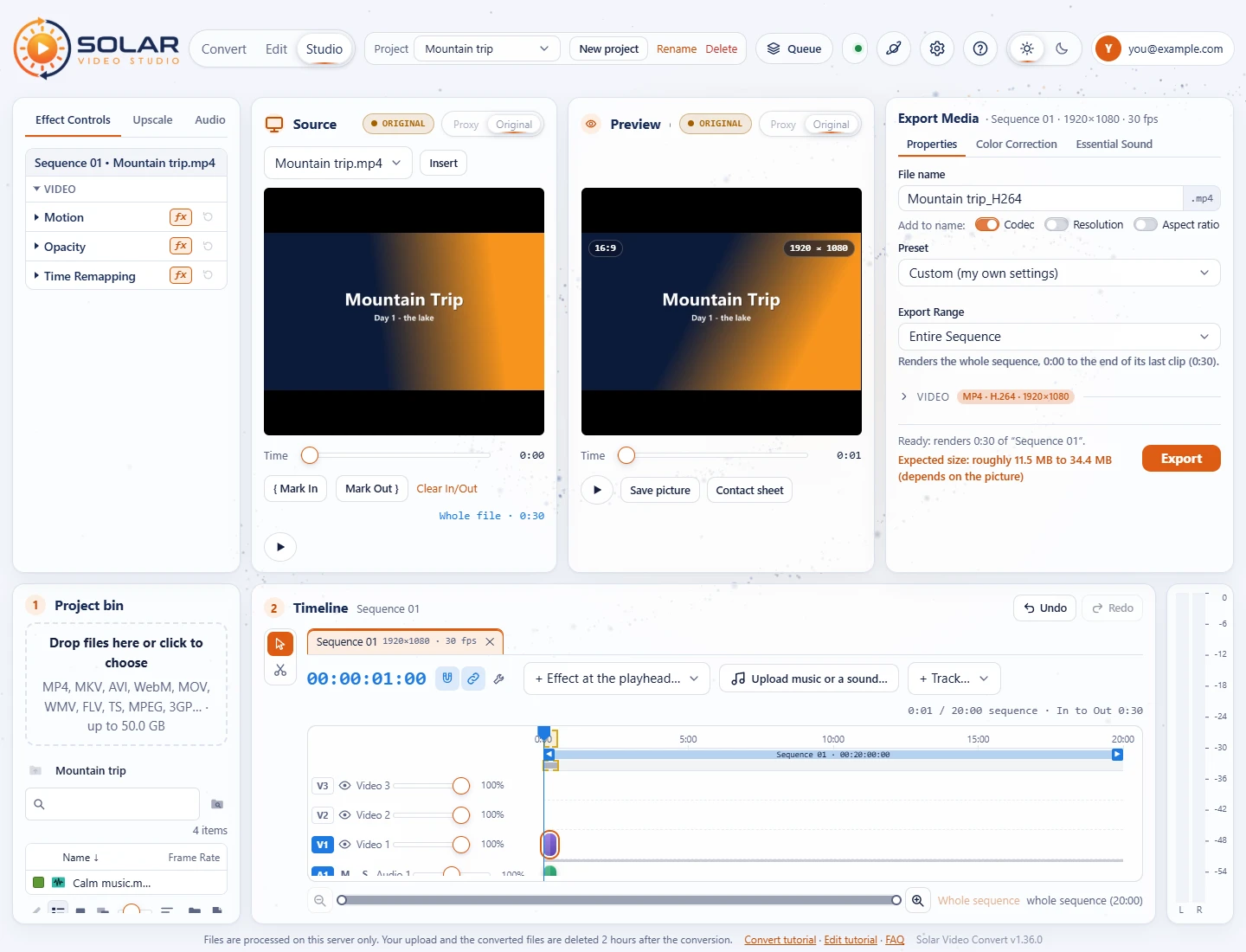
/studio). Like the Edit page it needs a free account: signed out, the sign-in window opens first, and after signing in or registering the Studio opens (see Open the Edit page). The page you used last opens next time. - The page has four parts:
- 1 Project bin: the files of the open project.
- Preview: the sequence at the playhead, as it will be exported.
- 2 Timeline: Sequence 01, every track on one ruler, with the settings of what you select under it.
- Export Media: file name, preset, the export range, video and audio settings and Export, which turns on as soon as the timeline has clips and shows the render length and the expected size.
- In the top bar, right of the page switch, are the open project, the Queue and the gear for Settings.
2The Ultrawide editing workspace
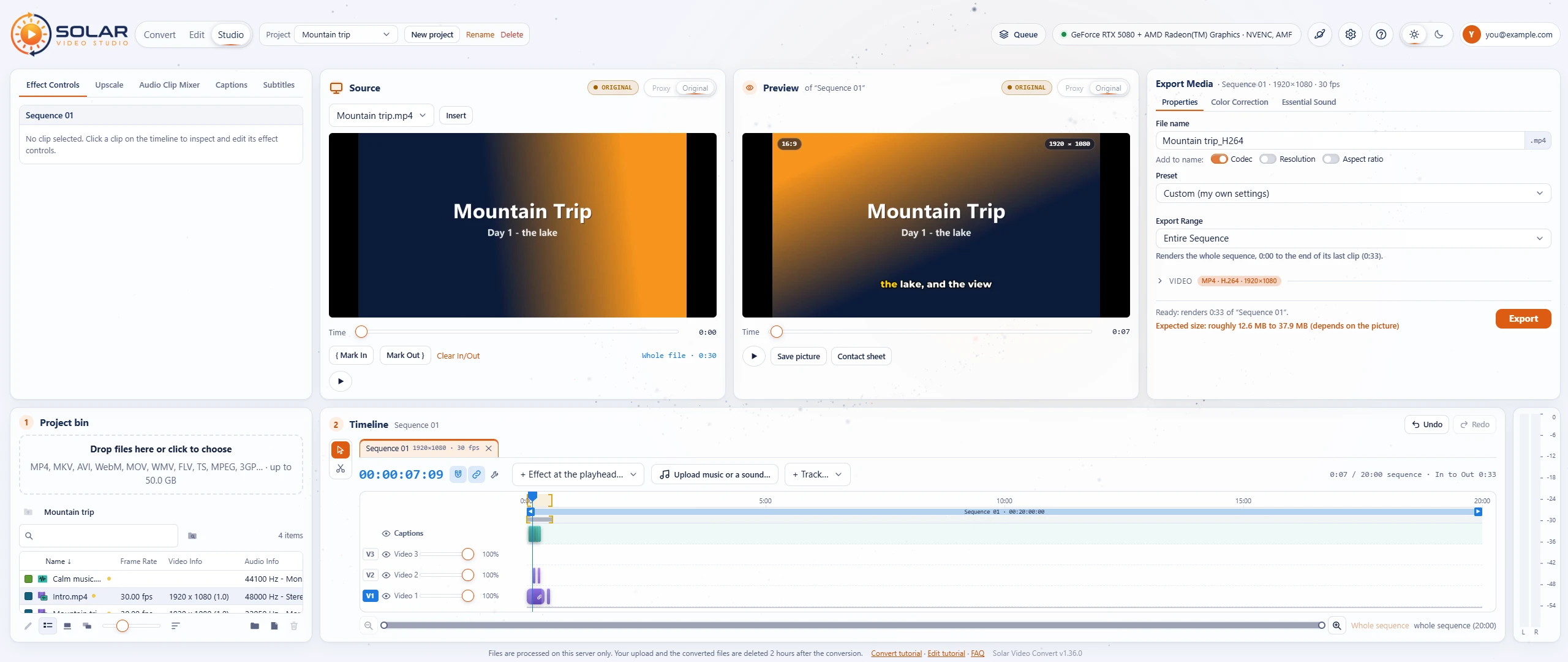
The Studio lays its panels out like Premiere Pro's editing workspace, made for 21:9 and 32:9 screens and fitting any other one.
- Docked panels in two rows, as in Premiere. At the top Effect Controls / Upscale / Audio Clip Mixer, the Source monitor, the preview, and Properties / Color Correction / Essential Sound. At the bottom the project bin, the timeline across the rest of the width (its tools in a column on the left) and the audio meters.
Resize the docked panels
- Drag the gap (the splitter) between two panels to make one bigger and the other smaller; the gap between the two rows works the same way. The panels follow the pointer as you drag.
- The workspace fits the screen: the page never scrolls, on a 21:9, a 32:9 or any other monitor. The top row is as tall as the gap between the rows puts it, the bottom row (project bin, timeline and audio meters) takes the rest. Every panel fits what it shows to its size: the preview and the Source picture grow and shrink and keep their shape, the mixer's faders and the audio meters get taller and shorter, and more tracks scroll inside the timeline under its ruler. Only long lists and settings scroll, inside their own panel: Effect Controls, Export Media, the bin's files, and Upscale / Subtitles / Captions under the timeline when the panel is short.
- Double-click a gap to put it back. The sizes are kept in this browser.
- Fill the window with one panel: point at it and press `; press it again or Esc to put it back.
Project and media bin
3Create a project
A project is one piece of work: its own bin (the files you use) and its own sequence with every clip, sound, effect, caption and setting. The project bar in the top bar shows the open project.
- Press New project and type its name. It starts with an empty bin and an empty 20-minute sequence.
- Project switches to another project; its bin and sequence show straight away.
- Rename changes the name (Enter keeps it, Esc keeps the old one). Delete removes the project and its sequence; its files stay in your uploads.
4Add files to the bin and insert them
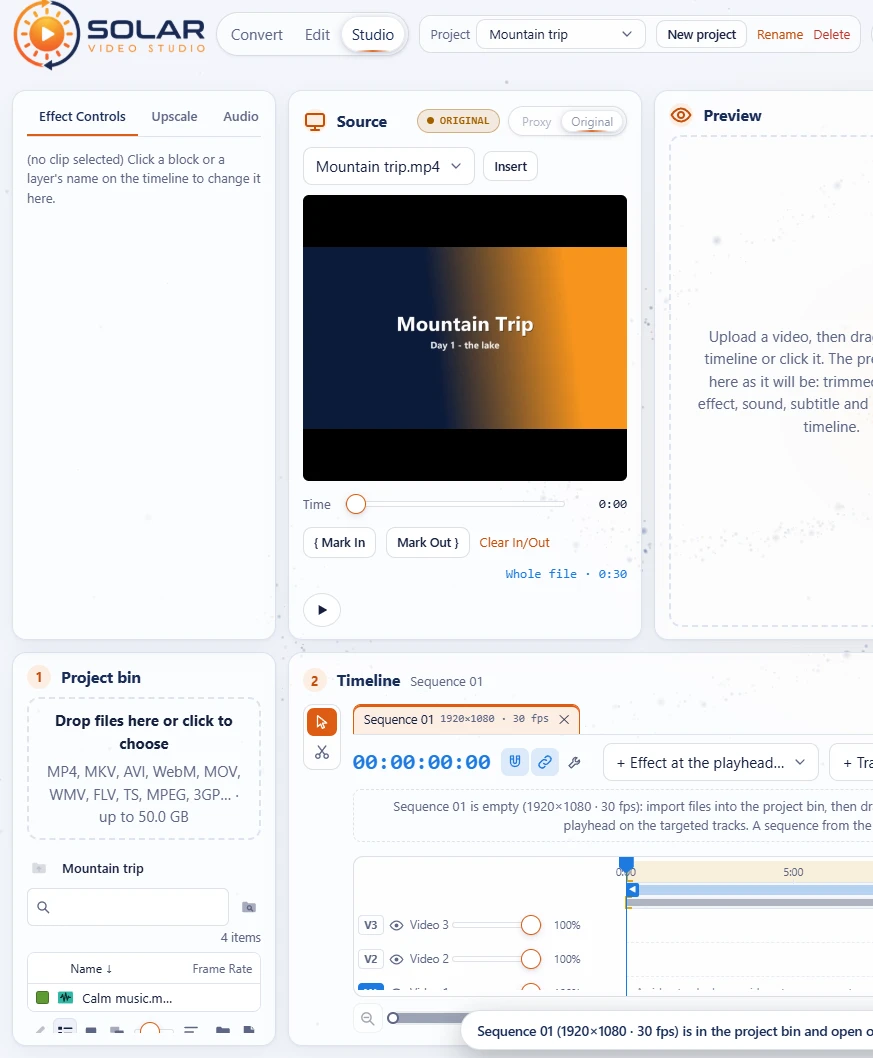
Add files to the Project Bin
- Drop files on Drop files here or click to choose (or on the bin's items). They go into the bin of the open project only, into the bin folder that is open: nothing is put on the timeline by itself.
- The search box (the magnifying glass) shows only the items whose name, type, frame rate or size contains what you type; the folder button next to it searches every bin of the project. Top right the bin says how many items it shows (12 items) or how many of them are selected (1 of 12 items selected).
Three views, like Premiere's Project panel
The buttons under the items switch the view:
- List view: a row per item with its label colour, its type icon (sequence, video with sound, video, audio, bin) and the columns Name, Frame Rate (23.976 fps), Video Info (3840 x 2160 (1.0): the size and the pixel aspect ratio) and Audio Info (48000 Hz - 16-bit - Stereo), read from the files themselves. Click a column's head to sort by it, again for the other way round.
- Icon view: a card per item with its poster frame, blue badges for its video and audio, its length, and its name with the label colour under it. Move the mouse across a picture to scrub through the file.
- Freeform view: the same cards, each where you drag it (the sort menu's Line up the cards again puts them back in a grid).
Bigger or smaller: hold Ctrl (⌘ on a Mac) and turn the mouse wheel over the bin, or drag the slider under it. In the List view the text grows from 11 to 18 px, with the rows, label colours and icons; in the Icon and Freeform views the cards grow from 96 to 360 px wide. Each view keeps its own size in this browser. The sort menu (the lines next to the slider) sorts by Name, Date added, Frame Rate or Media Type.
Select, organise and clear
- A click selects an item, Ctrl+click adds or takes one away, Shift+click selects a range; Ctrl+A selects everything while the bin has the focus, and the arrow keys move.
- New bin (the folder button, or Ctrl+B) makes a folder; drag items onto it to put them in it, double-click it to open it, and use the path above the search (or drag items onto it) to go back up.
- New item (the page button) makes a new, empty Sequence or an Adjustment Layer: double-click the adjustment layer to pick the effect it puts on the timeline at the playhead.
- The pencil gives the selected items a label colour; right-click an item for its menu (open, insert, rename with F2, duplicate or export a sequence, label, clear).
- Clear (the bin button, or Delete) takes the selected files out of the project (they stay in your uploads) and deletes the selected sequences, bins (what was in them moves up) and adjustment layers. A file that is on the timeline has to come off it first. A file used on the timeline has a small yellow dot.
Insert a file on the timeline
- Put the playhead where it should start and click the track to use (see the sequence).
- Drag the file onto the track and moment you want, select it and press Enter, or right-click it, Insert at the Playhead. A double-click opens it in the Source panel (see below).
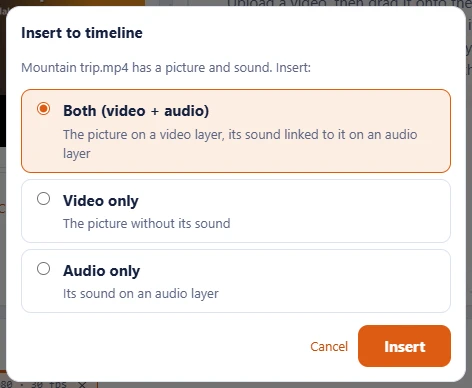
- For a video with sound a small window asks which streams to insert:
- Both (video + audio) (the default, Enter): the picture on a video track, its sound on an audio track, linked to it.
- Video only: just the picture.
- Audio only: just the sound, on an audio track.
5Three-point editing: Mark In / Out in the Source panel
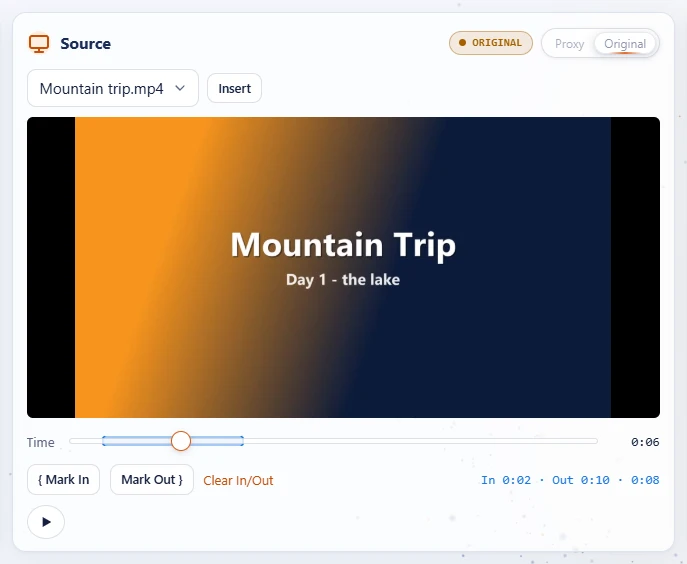
The Source panel (between Effect Controls and the preview) shows a file of the bin as it is, before it goes on the timeline, like Premiere's Source Monitor. Use it to take just a part of a file: a subclip.
- Pick the file in the list, or double-click it in the bin (the Source panel then has the focus).
- Move Time to look through it; the play button plays it from there (the square stops it).
- Press I ({ Mark In) where the part starts and O (Mark Out }) where it ends, with the Source panel in focus. The part lights up on the scrubber, with its length next to it. Clear In/Out (Alt+X) goes back to the whole file.
- On the timeline, put the playhead where it should go and make sure the right tracks are targeted (the blue V1 and A1 buttons in the track heads).
- Press Insert (,). The marked part goes in at the playhead: the picture on the targeted video track, its sound linked on the targeted audio track. The playhead moves to its end, ready for the next one.
The three points are the Source In, the Source Out and the playhead. Nothing on the timeline is moved out of the way: when a targeted track already has something there, the insert is stopped (see collisions).
Timeline editing
6The open 20-minute sequence
A sequence is an open 20-minute timeline: a ruler from 0:00 to 20:00 with open tracks, top to bottom:
- Subtitles (when they are on), always drawn on top of the picture. Its eye hides them in the preview and the result (No subtitles) and brings them back.
- Captions tracks (one per caption layer, when there are captions): drawn over every video track. Each has an eye that hides its captions in the preview and the result.
- V3, V2, V1: the video tracks, with video clips and picture effects (captions never go on a video track). A higher track is drawn on top of a lower one.
- A1, A2, A3: the audio tracks, with the sound of videos, music, sounds and sound effects.
No track or file is special: a video's sound is an ordinary clip on an audio track, linked to its picture. + Track adds more video or audio tracks, a captions track or subtitles.
Create a sequence: the New Sequence window
Opening the Studio on a project without a sequence, or New item, Sequence in the project bin, opens the New Sequence window first:
- Pick a format: 1080p Full HD, 4K UHD, 9:16 Vertical (TikTok, Reels, Shorts), 1:1 Square or 21:9 Ultrawide. Or type a Width and Height of your own: the format becomes Custom.
- Pick a Frame rate: 23.976, 24, 25, 29.97, 30, 50, 59.94 or 60 fps.
- Give it a Sequence name (Sequence 01 to start with) and press Create sequence. Cancel closes the window without one.
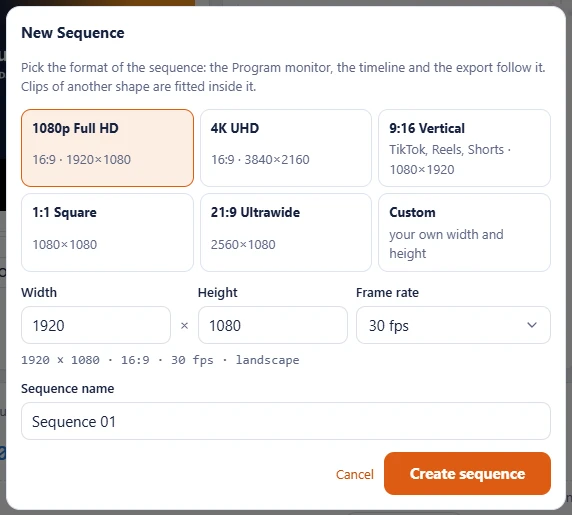
Every sequence keeps its own format: the Program monitor takes its shape, the timecode counts its frames and Export makes that size and frame rate. Clips of another shape are fitted inside, with black bars. Double-click its tab, or right-click it in the bin for Sequence Settings..., to change it later. Settings, Timeline & Editing, can switch the window off.
Sequence tabs
- Every opened sequence gets a tab over the timeline. Click one to switch: the monitor, the Export fields and the timecode follow at once.
- Drag tabs to reorder them. ✕ (or a middle click) closes a tab; the sequence stays in the project bin.
- With every tab closed, the timeline asks you to open a sequence from the bin or to create a new one.
Sequences in the project bin
A sequence keeps its tracks, clips, duration, In / Out and settings. In the bin (List view shows each one's frame and frame rate):
- Double-click it (or select it and press Enter) to open it in a tab; an open one says Open.
- Right-click it for Open Sequence, Sequence Settings..., Duplicate (a copy, Sequence 01 Copy, to try another cut without touching the first), Nest in the Open Sequence, Export to the Queue (it goes to the Queue as a whole), Rename (F2) and Delete; its files stay in the bin.
Nested sequences
- Drag a sequence from the bin onto a track of another one (or use Nest in the Open Sequence): it becomes one clip there, as long as its content, with its sound linked on an audio track.
- Double-click the nested clip to open that sequence in its tab. Every change made there (trims, moves, new clips) shows in each sequence it is nested in.
- A sequence can't be nested in itself, or in a sequence that is nested in it.
The bar above the tracks
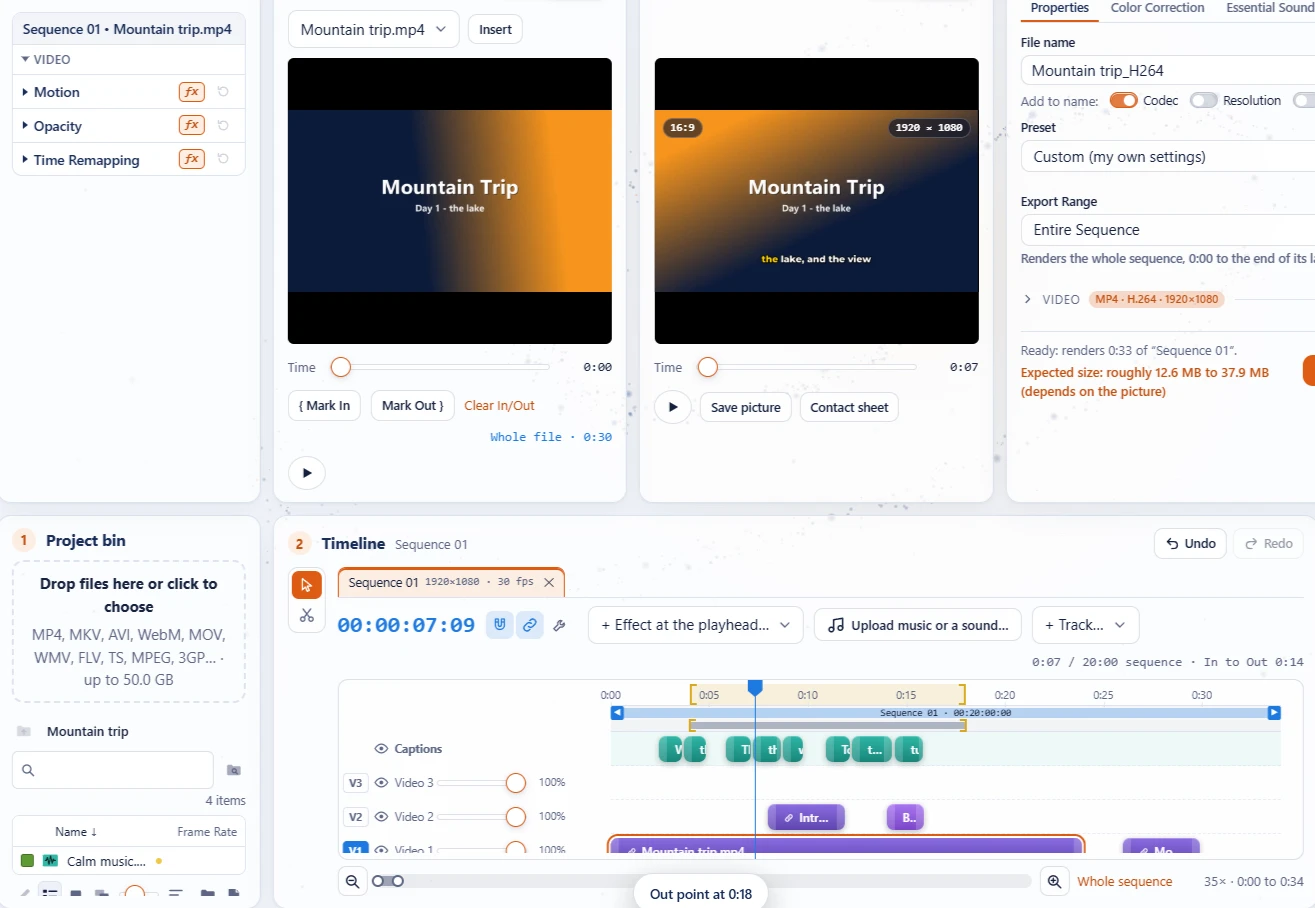
- The big blue timecode is the playhead (clock, SMPTE or frames: Settings, Workspace & Layout). The clock next to it shows the sequence length and In to Out.
- Snap in Timeline (the magnet, S): blocks stick to edges, the playhead, markers and In / Out. Hold Alt while dragging to place one freely.
- Linked Selection (the chain): a video clip and its sound move, trim and delete together, or each on its own when it is off.
- The wrench opens the timeline's settings (Settings, Timeline & Editing).
- The tools: the arrow (V) selects and moves blocks, the razor (C) cuts the block you click in two. They sit in a column at the left of the timeline.
- + Effect at the playhead, Upload music or a sound... and + Track.
The track heads
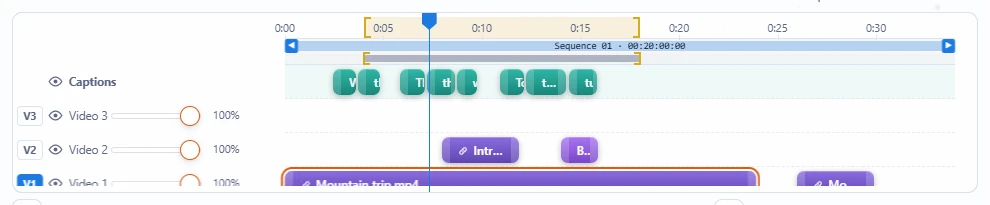
- V1, V2 ... / A1, A2 ...: the target buttons, blue when targeted (V1 and A1 at first). The Source panel's Insert goes onto the targeted tracks. Clicking a track targets and selects it, so Insert to timeline, new effects and pastes go there.
- The eye hides a video track; M mutes and S solos an audio track.
- The slider is the track's opacity (video) or volume (audio). Click a track's name for its settings under the timeline.
Navigate the canvas
- Click the ruler to move the playhead (the blue pentagon with a line through every track).
- Zoom with the magnifiers, Ctrl + mouse wheel or = / -. The navigator bar under the timeline scrolls when you drag it and zooms when you drag its round ends. Whole sequence shows all 20 minutes again.
- Markers: M adds or removes one at the playhead, Shift+M goes to the next. ↑ ↓ jump between edit points.
7Place clips freely, with gaps
The sequence is an open canvas: a clip can start at any timecode, on any track, with empty space before and after it.
- Drop a file from the bin on any track at any moment: a tip under the pointer says where it lands (for example on V2 at 7:30). The very first file works the same way: it does not have to start at 0:00.
- Drag a block along its track to change its start, or up and down onto another track of its kind. Its linked sound moves with it.
- Leave gaps where you like. Where no video clip is, the result is black; where no sound is, it is silent. The preview shows the same.
Collision guards and overlap alerts
Nothing you placed is ever overwritten or pushed aside without you doing it:
- Source panel Insert: when a targeted track already holds media between the playhead and the end of the part, nothing is inserted and an alert says so: Collision detected: The selected track already contains media in this time range. Target another track (click its V or A button) or move the playhead to an empty space, and insert again.
- Insert to timeline, drops and pastes: when the chosen track is busy at that moment, the clip goes on the next free track of its kind instead (a new one when all are taken), never on top of another block.
- Speed effects can't overlap each other: the timeline warns Two speed effects overlap and only the first is used until you move one.
- No track targeted: the Source panel's Insert tells you to click V1 (or another video track) and A1 (or another audio track) first.
8Sequence length and the work area
The sequence starts 20 minutes long. Under the ruler are two bars: the blue duration bar with a ◀ and a ▶ handle sets how long the sequence is, and the work area under it, the In and Out brackets with a bar between them, sets what is exported with In to Out Range Only. The timeline always fits the whole sequence from edge to edge, also when you resize the window or the panels, so you don't need to zoom.
The duration bar
- Drag ▶ to the right to make the sequence longer; hold it at the right end and it keeps growing (20 minutes become 30, 60 and more). The timecode in the bar follows as you drag.
- Drag ▶ to the left to make it shorter. It stops at the end of the last clip, so dragging it all the way fits the sequence to its content.
- Drag ◀ to the right to start the sequence later, up to its first clip: the empty time before it is left out of the export.
- Click a handle and use the arrow keys for exact steps: a second, with Shift a minute (▶) or ten seconds (◀). Undo puts the duration back.
Set the work area
- With the timeline in focus, I and O put the In and the Out at the playhead.
- Drag the brackets on the ruler anywhere (they snap like blocks), or drag the bar between them to move both.
- Alt+X clears them; Shift+I / Shift+O move the playhead to them.
Make it longer with the Out bracket
- You can also drag the Out bracket (the Mark Out handle) to the right end of the timeline and hold it there: the sequence grows while you hold it, 20 minutes becoming 30, 45, 60 and more, and the ruler follows.
- Let go: the sequence keeps its new length, up to the Out.
- Drag the Out back to the left to shorten the work area. Once nothing reaches past 20 minutes, the sequence goes back to 20 minutes.
9Cut and arrange
- Shorten a block by dragging its start or end; drag it back out to bring the part back.
- Cut with the razor (C), or put the playhead there and press Ctrl+K. A video clip's linked sound is cut with it.
- Remove the selected block with Delete. A gap stays: drag the next block over to close it.
- Join two cut pieces again: select the first and press Join with the next piece under the timeline. Unlink its sound lets a clip and its sound go their own way.
- Select more with Ctrl+click, on blocks or track names; Delete removes them all in one step. Selecting a track and pressing Delete (or Delete layer) removes the track and everything on it.
- Copy, cut and paste clips, sounds, effects and captions with Ctrl+C, Ctrl+X and Ctrl+V: they land at the playhead, never on top of a block that is there.
- Undo and Redo (Ctrl+Z / Ctrl+Shift+Z) take back every step, also cuts, deletes and pastes.
10Video layers: one video over another
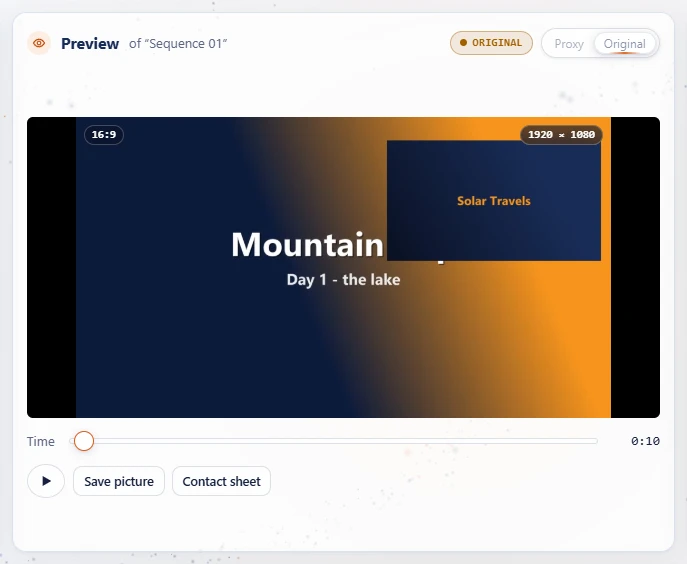
Put a second video on a higher track than the first, at the same time: picture in picture, a logo, a cutaway. Its sound goes on an audio track, linked to it with a chain mark.
- Stacking: the highest track is drawn on top, down to V1. A track's effects work on the picture of the tracks under it. Captions are on their own tracks, drawn over every video track.
- Opacity: the slider in the track's head. At 40% you see 40% of the track over the picture under it.
- Size, place, turn and crop each clip in Effect Controls (next step).
Slow motion and fast forward change the timing of the whole sequence, so a track's opacity does not apply to them. Burned-in subtitles are always on top.
Clips, color and sound
11Effect Controls: motion, opacity and speed
Select a video clip on the timeline. Effect Controls (top left) shows Project • Clip and, under Video, the effects every clip has.
Motion
- Position: X and Y in pixels of the sequence (the middle by default). Drag the numbers or type new ones.
- Scale: 100% is fitted into the frame. Switch Uniform Scale off for a separate Scale Width.
- Rotation in degrees, around the Anchor Point.
- Crop Left, Crop Top, Crop Right and Crop Bottom, in percent of the clip. The Anti-flicker Filter softens fine lines.
Opacity and Blend Mode
- Opacity: 0 to 100% for this clip alone (the track's slider works on top of it).
- Blend Mode: how the clip mixes with the tracks under it: Normal, Multiply, Screen, Overlay, Darken, Lighten or Difference.
Time Remapping
The clip's speed: 100% normal, 50% half, 200% double. Its linked sound plays at the same speed.
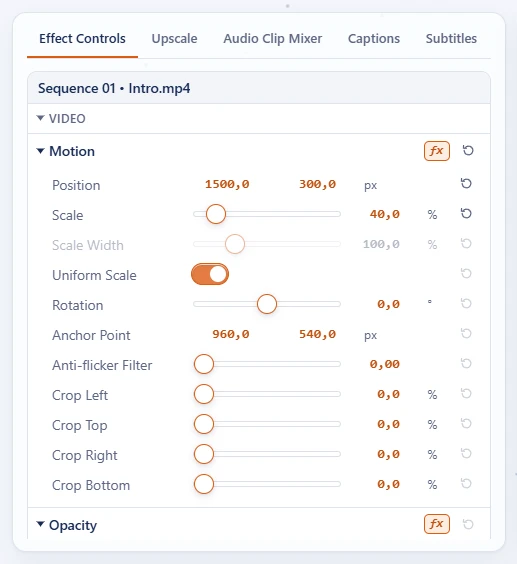
- Each block has an fx switch (off: left out, its values kept) and a reset; each value has its own round reset button. Blocks start closed; click a name to open it.
- Fields apply as you go. The preview shows the change at once and the server's real frame follows a moment later. Each change is one step to undo.
- The values go with the clip: copied and pasted with it, and both halves of a razor cut keep them.
- Effects, sounds and captions you select show their own settings here too (start, length, strength, volume, fades, text).
12Color Correction
The Color Correction tab next to Properties holds the picture of what you selected: a video clip, or the name of a video track for the clips on it.
- Brightness, Contrast and Saturation.
- Flip (mirror, upside down) and Stabilise shaky video.
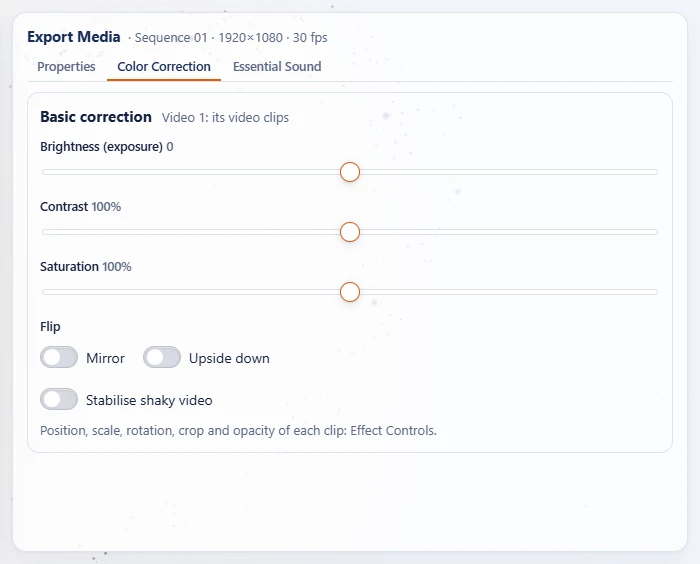
Each clip or track keeps its own settings, undone and redone like the rest. A rotation or crop made on the Edit page shows here as a note with Clear it: in the Studio, turning and cropping are a clip's Motion. Upscale works as on the Edit page (see Upscale); in the Studio it is a tab of its own, between Effect Controls and Audio Clip Mixer.
13Effects and sound effects
- Put the playhead where the effect should start.
- Pick one from + Effect at the playhead. Picture effects go on the selected video track (or the lowest free one), sound effects on an audio track.
- Drag it and its ends like any block, and set its start, length and strength in Effect Controls.
| Kind | Effects |
|---|---|
| Camera | Zoom in, Zoom out, Shake, Earthquake |
| Speed | Slow motion (½×), Super slow motion (¼×), Fast forward (2×) |
| Look | Black & white, Sepia, Blur, Vignette, Negative, Glitch, Flash, Fade in from black, Fade out to black |
| Sound | Mute, Louder, Quieter, Muffled (behind a wall), Telephone, Bass boost, Lo-fi, Tremolo, Vibrato. Only on the Studio page. |
A sound effect works on the sound of its track and the tracks above it in the list (A1, A2 ...); its track's volume is how much of the effect you hear. Louder parts go through a limiter, so they never clip.
14The Audio Clip Mixer
Music, voice-overs and sounds go on the audio tracks: insert a sound file from the bin, or press Upload music or a sound... in the timeline bar to add one at the playhead. Select a sound for its start, length, From (where in the file to begin), volume and fades.
The Audio Clip Mixer tab has one channel strip per audio track: A1, A2, A3 and every track you add. Strips come and go with the tracks by themselves: add a track and its strip appears, delete it and the strip goes. Each strip, top to bottom:
- Balance (pan) knob: from left (-100) to right (+100). Drag it or use the arrow keys; a double-click centres it.
- M mutes the track, S solos it (while any track is soloed, only soloed tracks are heard, in the preview and in the result), ◇ is for keyframes (shown only, not recorded yet).
- Volume fader: from -∞ to +15 dB, 0 dB at first. The arrow keys move it 0.1 dB (Shift: 1 dB), a double-click puts it back to 0 dB.
- VU meter: the track's left and right level while the preview plays. Green is fine, yellow from -6 dB, red over 0 dB. The peak is held, and the clip light on top stays on after a clip (click it to clear).
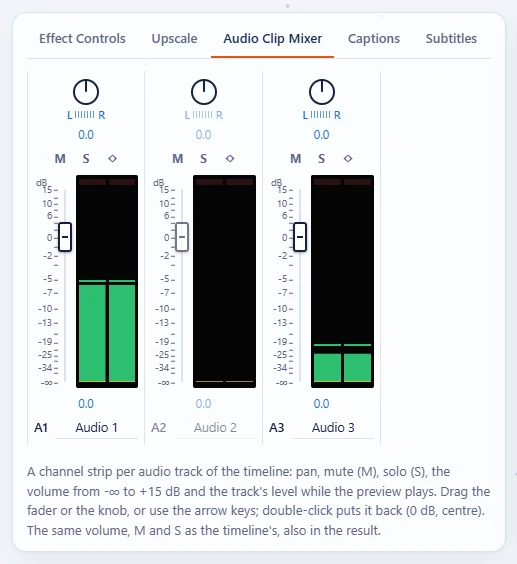
The faders, M and S are the same as the sliders and buttons in the track heads, both ways, and you hear changes at once while the preview plays. A strip with nothing of its track at the playhead is dimmed but still works. The Essential Sound tab holds the audio settings of the result: codec, bitrate, channels, less noise and even volume (see Sound settings).
15Subtitles and captions
Captions and subtitles are set in the Captions and Subtitles tabs, next to Effect Controls and the Audio Clip Mixer, and work as on the Edit page (see Subtitles, Automatic subtitles and Animated captions). In the Studio:
- The tab holds speech detection, the sources, translation, the looks and fonts and the subtitle settings. A selected caption shows only its words and times; All caption settings goes back to the rest.
- Subtitles start switched off for every new file in the Studio, so a video's own subtitle tracks are not exported unless you want them. Turn on the switch in the Subtitles heading (or the eye of the Subtitles track) to keep them as tracks; Make subtitles switches them on by itself.
- Changing a setting in the Captions or Subtitles tab (for example the Subtitles switch) keeps that tab open, also with a clip selected. Pressing a clip on the timeline still opens Effect Controls.
- The eye of a Captions or Subtitles track hides it in the preview and the result, and shows it again.
- Captions are blocks on Captions tracks of their own, above the video tracks (drawn over all of them), edited, cut (between their words) and moved like other blocks. Double-click an empty spot of a Captions track to add a caption there.
- Import SRT / VTT… turns each subtitle of the file into a caption block on a new captions track.
- Subtitle files you add show as their own track on top of the timeline.
- Listen to chooses the sound the server writes down: Sequence Audio (Active Timeline Mix), the open sequence mixed as Export makes it (every clip where it sits, with its cuts and trims, the faders, mute and solo, silent in the gaps), or one track alone (Track A1 Only, Track A2 Only …). The Source panel plays no part in it. With an In or Out point set, Detect over picks the Entire sequence or only the In/Out work area. The words keep the times of the sequence.
- Make subtitles puts the subtitles on a new, empty track above the video tracks, named Subtitles, one block per line at the moment it is spoken; clips on the other tracks are never touched. The new track lights up when its blocks arrive. A translation goes on a second track above it. Detect speech under Captions does the same with a Captions track.
- Run it again and you are asked to replace the track of the earlier pass or add a new track and keep both.
- Subtitle blocks move, trim, cut and copy like other blocks. Select one and open Look in the inspector to change its font, size, colours, box and position; Use this look for the whole track gives every block on its track the same look.
16Preview and play
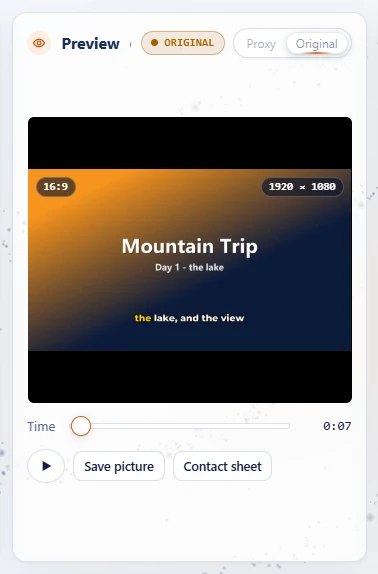
The preview shows the sequence at the playhead exactly as the export makes it: every track, effect, caption, subtitle and the watermark, black and silent in the gaps.
- Click the picture or press Space to play from the playhead.
- Shuttle with J K L: backwards, stop, forwards. Press J or L again for 2× and 4×. ← → step one frame (Shift: five).
- Save picture and Contact sheet work as on the Convert page. To see a clip as it is, without the sequence, open it in the Source panel.
- Ctrl+` shows the preview full screen.
- Proxy | Original (at the right end of the Program and the Source monitor titles, with a badge for what plays now): Proxy plays a lighter editing copy of each file, so scrubbing and playing stay smooth; Original plays the files themselves. The proxy size is picked from a benchmark of this browser and the server (540p, 720p or 1080p, never bigger than the sequence), or set by hand in Settings, Playback & Cache. Export always uses the originals.
- Proxies are only made when you ask. A video larger than 1080p coming into the project bin asks High-resolution media detected: Generate Proxy or Use Original Footage. Videos of 1080p or less always play their original. Change the answer later with a right-click on the file in the bin (Generate Proxy / Use Original Footage).
- While a proxy is being made, the monitor head shows Generating proxy with a Stop button next to it, which stops the proxies of that monitor's files. To stop one or several from the bin, select them, right-click and pick Stop Proxy (Stop N Proxies for a multiple selection). The unfinished copy is removed and the original plays; Generate Proxy starts it again. Deleting an original also stops and removes its proxy.
- On a busy server, a lower preview resolution (Settings, Playback & Cache: Full, 1/2 or 1/4) makes it quicker. The result keeps its full size.
Settings and export
17Global Settings and keyboard shortcuts
Open Settings
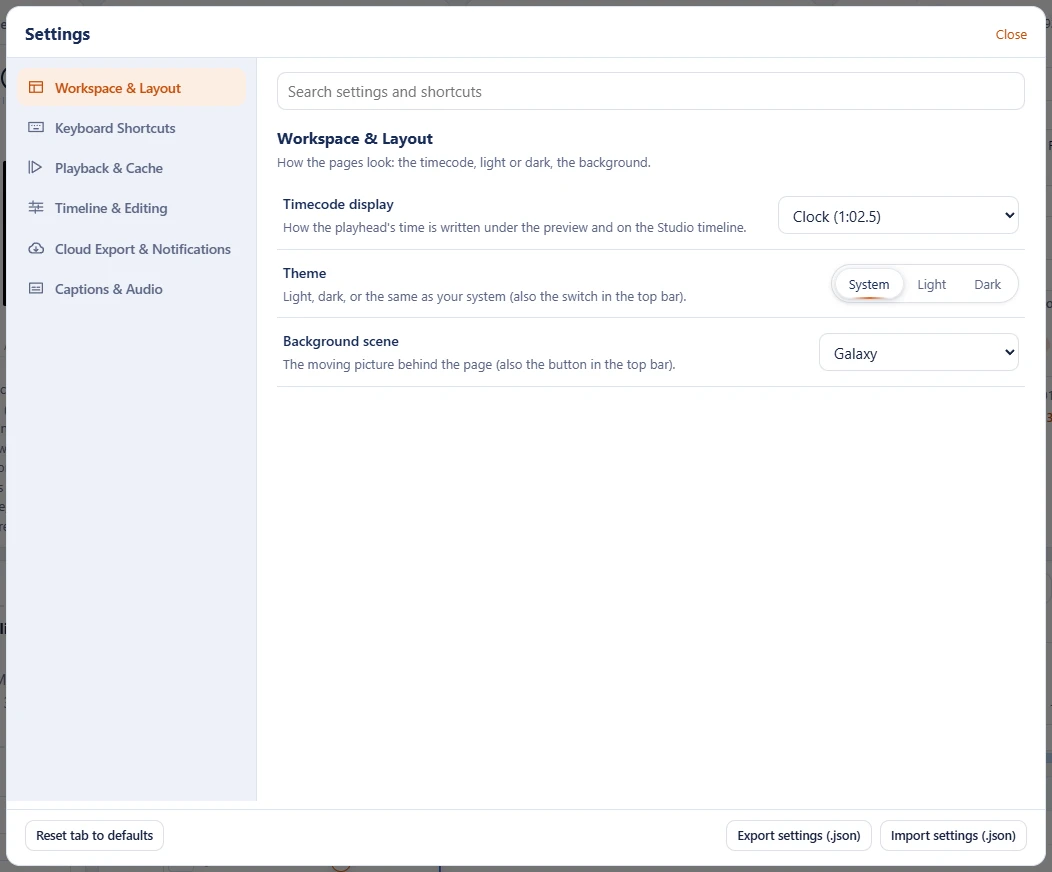
- Click the gear at the top right of the page, or press Ctrl+, (Cmd+, on a Mac).
- Pick a tab on the left: Workspace & Layout, Keyboard Shortcuts, Playback & Cache, Timeline & Editing, Cloud Export & Notifications or Captions & Audio. The search at the top looks through every tab.
- Changes apply at once. Reset tab to defaults puts the open tab back. All tabs are explained in the FAQ: Where are the settings?
Change a shortcut
- Open the Keyboard Shortcuts tab (Ctrl+Alt+K or ? open it directly). The Studio filter lists the Studio's own keys.
- Click the key of an action, then press the new key or combination (Esc cancels).
- When another action on the same page already uses that key, you are asked whether to move it.
- Default puts one action back; Reset all to the defaults puts every key back to the Premiere Pro set.
The Premiere Pro defaults
| Key | Does |
|---|---|
| Space | Play / stop |
| J K L | Shuttle backwards, stop, forwards (again for 2× and 4×) |
| V, C | Selection tool, Razor tool |
| Ctrl+K | Cut at the playhead |
| Delete | Remove the selected blocks or track |
| Ctrl+C / X / V | Copy, cut, paste at the playhead |
| I, O, Alt+X | Mark In, Mark Out, clear (the work area, or the Source panel when it has the focus) |
| , | Insert the Source panel's part |
| S | Snapping on or off |
| M, Shift+M | Add a marker, go to the next one |
| Alt+M | Mute the selected sound, clip or audio track (a selected video track is hidden) |
| Alt+← → | Nudge the selected block |
| `, Ctrl+` | Panel under the mouse fills the window, preview full screen |
| Ctrl+Z, Ctrl+Shift+Z | Undo, redo |
| Ctrl+M | Export |
| Ctrl+, | Settings |
Shortcuts don't work while you type in a field: press Esc to leave it. Ctrl is Cmd on a Mac. Your keys and settings are kept in this browser; Export settings (.json) and Import settings (.json) take them to another one.
18Export and the Queue
Start an export
- In Export Media (the Properties tab in the Ultrawide workspace), check the file name and the preset, and open Video for the format, codec, size, frame rate and quality (see Customize).
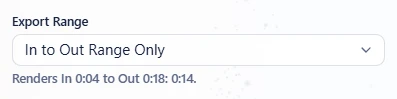
- Set Export Range: Entire Sequence, or In to Out Range Only for just the work area. The line under it says what will be rendered and how long it is; the expected size follows.
- Press Export (Ctrl+M). It is on as soon as the timeline has clips (its line says Ready: renders 0:42 of "Sequence 01"); on an empty timeline it stays off and says The sequence is empty. Export added to Queue shows under the Queue button and the render runs on the server in the background: keep scrubbing, trimming and editing meanwhile.
Follow it in the Queue
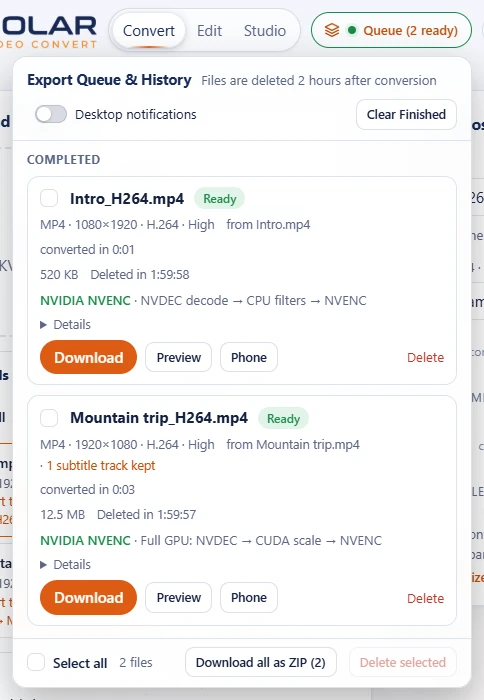
- The Queue button at the top right shows a spinner and Queue (1 processing) while something renders, and a green dot with Queue (1 ready) when a result is waiting.
- Click it to open Export Queue & History. It floats over the page, so the timeline stays usable:
- In progress: format and size, a progress bar with the percentage, time left and elapsed, and Cancel.
- Completed: size, time taken and the auto-delete countdown, with Download, Preview, Phone (a QR code), Delete and Details.
- At its foot, Select all, Download all as ZIP and Delete selected; at its head Desktop notifications and Clear Finished. Click elsewhere or press Esc to close it.