

Solar Video Edit, step by step
The Edit page has everything the Convert page has, plus: rotate, crop and colour the picture, upscale it with AI, put effects and music on a timeline, let the server write subtitles and animated captions from the speech, and join clips. The preview shows every change straight away. New here? Start with the Convert tutorial: uploading, presets, trim, sound, subtitles and downloading work the same on both pages.
1Open the Edit page
- Click Edit in the switch next to the logo (or open
/edit). The Edit page needs a free account: signed out, the sign-in window opens first. Press Register in it, enter your email address and a password (the list under it ticks off each rule), and the Edit page opens. Next time use Sign in at the top right. The logo changes to SOLAR VIDEO EDIT and step 2 gets the editing sections. The page you used last opens next time. - Upload a video in step 1 (see Upload a video) and click it in Your uploads. The edits belong to that file only.
- The editing tools are headings in step 2: Picture, Effects, Audio (with the sound timeline), Subtitles (with automatic subtitles) and Captions. Click a heading to open it. A closed heading shows an orange label when something inside is in use (for example 4 effects), so a closed section never hides a change. Open sections stay open when you refresh the page; a hard refresh (Ctrl+F5) closes them all.
- Keep an eye on the Preview under your uploads: it shows every edit at the moment chosen with its Time slider. New effects, sounds and captions start at that moment too.

The Studio button in the same switch opens Solar Video Studio, the Edit page's tools laid out like a video editor for advanced editors: projects, a Source panel, one timeline with video and audio layers, cutting instead of the Trim, Effect Controls, sound effects and an Audio Clip Mixer. The effects, sounds, subtitles and captions of this tutorial work there too. See the Studio tutorial.
Undo and redo, the sound settings, subtitles and the watermark work the same as on the Convert page: see Undo and redo, Sound settings and Subtitles.
2Picture: rotate, crop, colours, stabilise
Open Picture:
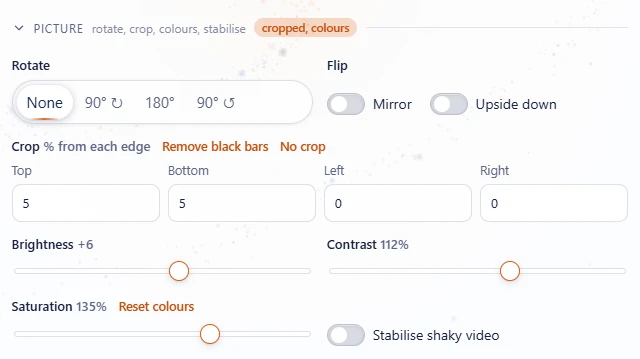
- Rotate: None, 90° clockwise, 180° or 90° anticlockwise, for videos filmed sideways.
- Flip: Mirror (left becomes right) and Upside down.
- Crop: how many percent to cut from the top, bottom, left and right. Remove black bars finds bars in the video and fills in the numbers; No crop resets them.
- Brightness, Contrast and Saturation (colour strength): drag the sliders; Reset colours puts all three back.
- Stabilise shaky video: smooths out a shaky hand-held camera.
3Upscale: bigger and sharper
Open Upscale (under Picture) to make a small or old video larger, with more detail than a plain resize:
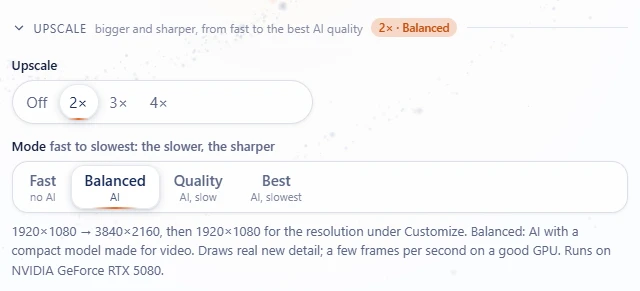
- Pick how much bigger: 2×, 3× or 4× as wide and high (Off to stop upscaling).
- Choose the Mode, from fast to slowest; the slower, the sharper:
- Fast: a sharp resize without AI, about as quick as a normal conversion.
- Balanced: AI (Real-ESRGAN's compact video model).
- Quality: AI (Real-ESRGAN x4plus) for real footage or animation, slow.
- Best: Quality with extra passes on every frame, the slowest and cleanest.
- With Quality or Best, say What is in the video: Real footage or Animation / cartoon. The AI works differently for each.
4Effects on a timeline
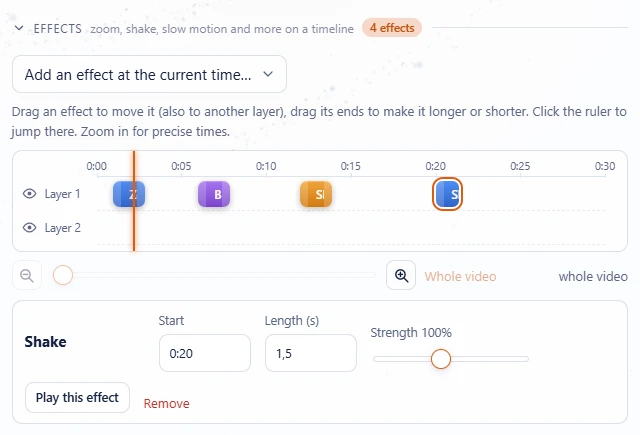
- Move the preview's Time slider to where the effect should start.
- Open Effects and choose one from Add an effect at the current time....
- The effect appears as a block on the timeline and is selected: set its Start, Length and Strength underneath, press Play this effect to see it in the preview, or Remove it.
| Kind | Effects |
|---|---|
| Camera | Zoom in, Zoom out, Shake, Earthquake |
| Speed | Slow motion (½×), Super slow motion (¼×), Fast forward (2×). These change the length of the video; the sound follows with its pitch kept, and so do burned-in subtitles. |
| Look | Black & white, Sepia, Blur, Vignette, Negative, Glitch (RGB split) |
| Transitions | Flash, Fade in from black, Fade out to black |
Effects on different layers (rows) are combined, for example a zoom on layer 1 with black & white on layer 2 at the same time.
5Working with timelines
Effects, sounds and captions each have a timeline that works the same way:
- Move a block by dragging it, also up or down to another layer.
- Make it longer or shorter by dragging its left or right edge.
- Click a block to select it and see its settings.
- Click the ruler (the times at the top) to jump the preview there. The orange line is the current time.
- Switch a layer off with the eye (effects, captions) or the speaker (sounds) in front of it. Its blocks stay, dimmed, and are left out of the result until you switch it on again.
- Zoom with the magnifier buttons under the timeline or Ctrl + mouse wheel, down to one second over the whole width, for precise placing. Scroll with the slider between the buttons or Shift + mouse wheel; Whole video zooms out again.
- Keys: Delete removes the selected block, Ctrl+K cuts it at the current time, Alt+← → nudge it, ↑ ↓ jump to the previous / next edit point, = - zoom. See keyboard shortcuts.
How long new effects, fades and captions are is set in Settings (Timeline & Editing).
6Add music, a voice-over or sound effects
- Move the preview's Time slider to where the sound should start.
- Open Audio and press Upload music or a sound.... Pick an MP3, WAV, FLAC, M4A, OGG or another sound file.
- The sound appears on the sound timeline. Sounds you uploaded before can be added again from Or add one you uploaded before....
- Click the sound to set its Start, Length, From (where in the sound file to begin), Volume (0 to 200%), Fade in and Fade out. Play this sound plays it with the video.
- Use Volume of the video's own sound to make the original sound quieter (or louder) under the music.
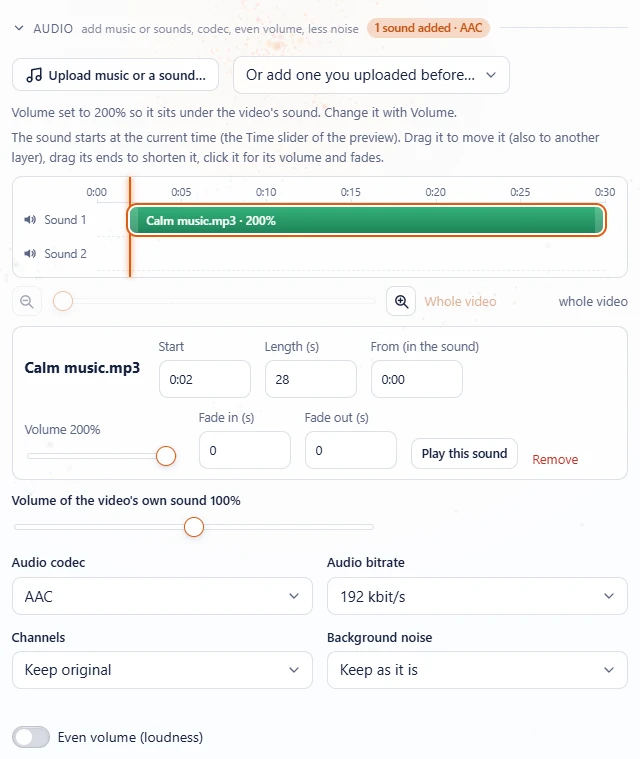
Works for videos without sound too. Up to 20 sounds per video, on as many layers as you like.
7Automatic subtitles from the speech Premium later, free now
No subtitle file? Let the server listen to the video and write them.
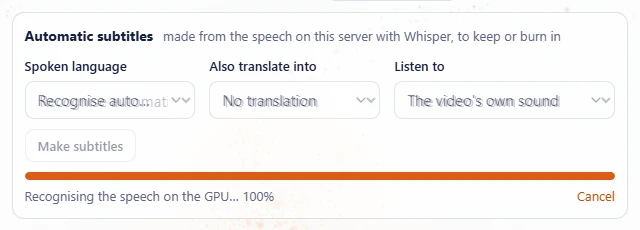
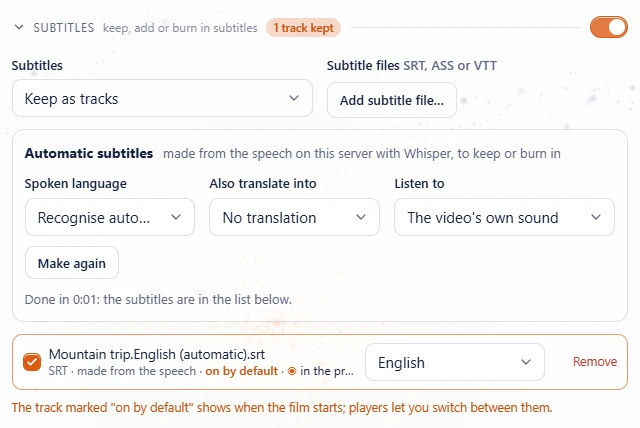
- In Subtitles, under Automatic subtitles, leave Spoken language on Recognise automatically or pick the language.
- Optional: Also translate into another language for a second file.
- Listen to picks the sound to write down: the video's own sound (or one of its sound tracks), the sounds on one audio layer (a voice-over you added, for example), or the whole edit, everything the preview plays together. It shows once there is more than one to choose from. The times always follow the video, so the subtitles land where the words are spoken.
- Press Make subtitles. A bar shows each step; Cancel stops it.
- They appear in the subtitle list straight away as Automatic subtitles (being made from the speech), already ticked to keep or chosen to burn in; set their language and burn-in style like for an added file.
- You don't have to wait: press Export right away. The export shows Waiting for the subtitles in the Queue and starts as soon as they are made. If they are cancelled or fail, the export fails with the reason.
- When they are done, the list shows the finished files (made from the speech, translated automatically), ready to keep as a track or burn in.
8Animated captions Premium later, free now
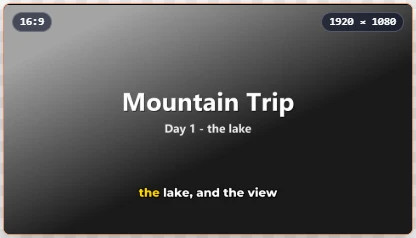
Captions are the spoken words shown big in the picture, appearing as they are said, like on TikTok and Reels.
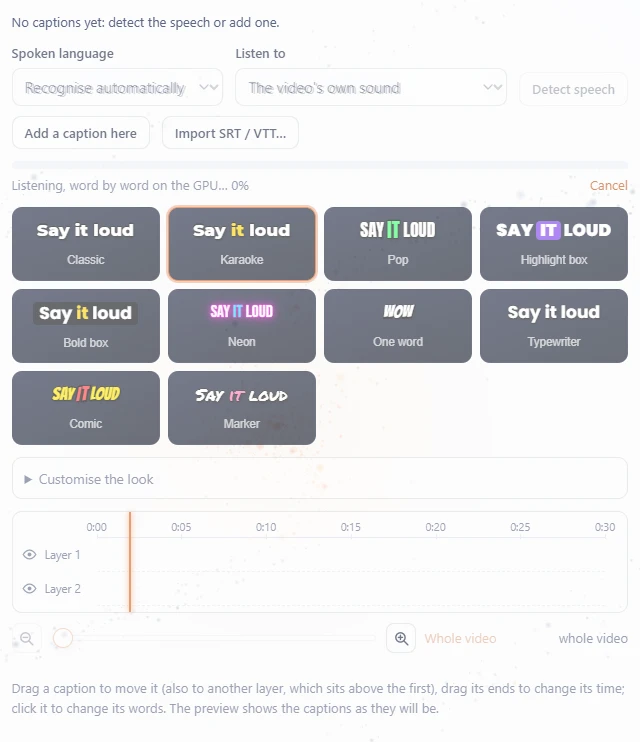
- Open Captions, pick the Spoken language (or leave it on automatic) and press Detect speech. Listen to chooses which sound to detect the words in: the video's own sound, one audio layer, or the whole edit (everything the preview plays), like for automatic subtitles.
- The server finds every word and the moment it is spoken, and makes short captions of them. A bar shows the progress; Cancel stops it. Music and silence give no words.
- The switch at the end of the Captions heading shows them in the video or not, for the preview and the conversion (the captions you made stay; the section dims while it is off).
- Add a caption here adds one by hand at the current time, for example a title.
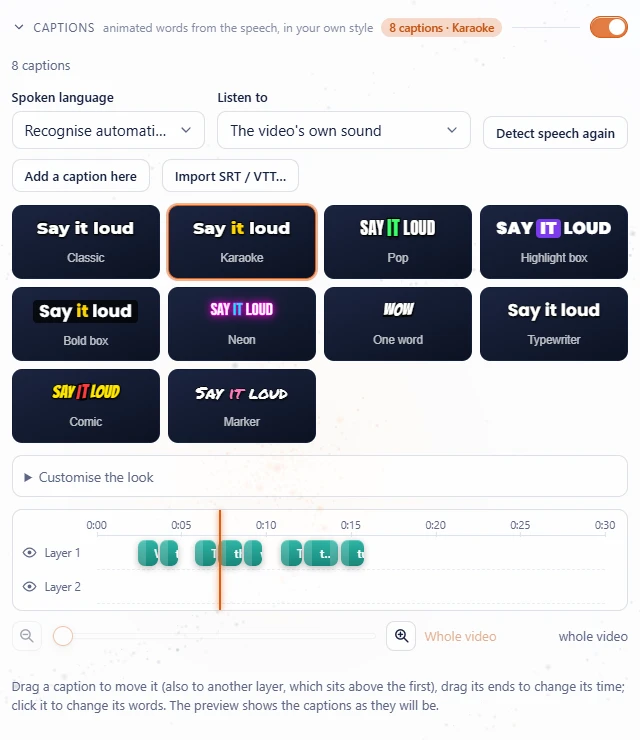
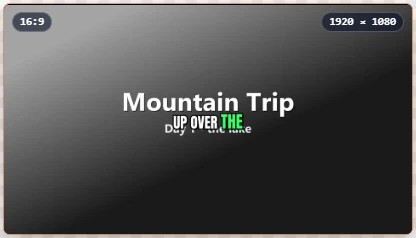
After a detection the button reads Detect speech again, for example after picking another spoken language. Detecting can be undone like any other change.
9Choose and customise the caption look
Click one of the ten looks: Classic, Karaoke, Pop, Highlight box, Bold box, Neon, One word, Typewriter, Comic or Marker. Each tile shows a sample.
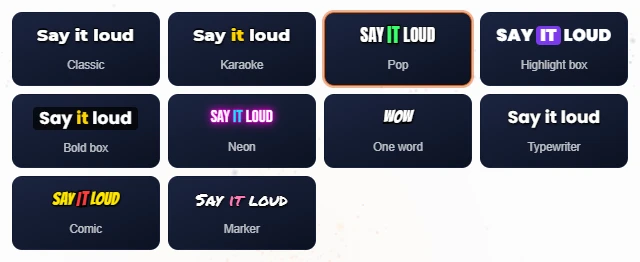
Open Customise the look to change it further. Your changes become Your own look.
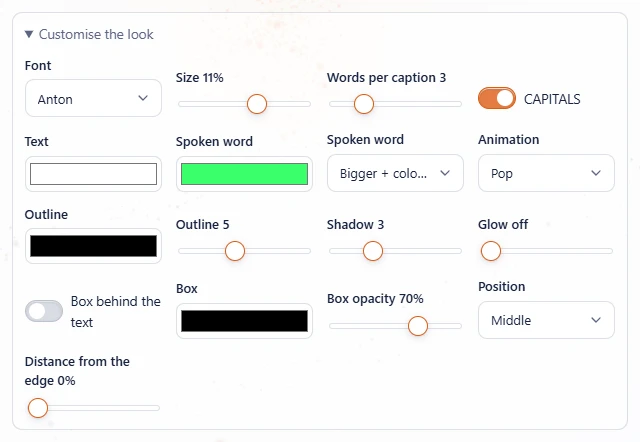
| Setting | What it does |
|---|---|
| Font | Montserrat, Poppins, Anton, Bebas Neue, Bangers, Permanent Marker or Arial (included with the app). |
| Size, Words per caption | How big, and how many words show at once (1 to 10). Changing the words regroups each layer on its own. |
| CAPITALS | Shows every word in capitals. |
| Text, Spoken word | The colour of the text and of the word being spoken. How the spoken word stands out: None, Colour, Bigger + colour, or a Box behind the word. |
| Animation | None, Fade in, Pop, Bounce, Slide up, or Word by word (appear). |
| Outline, Shadow, Glow | Strength of each, and the outline colour. |
| Box behind the text | A box with its own colour and opacity. |
| Position, Distance from the edge | Bottom, middle or top, and how far from the edge. |
10Edit the captions
The captions sit on their own timeline (see Working with timelines). Click one to change it:
- Text: fix a word. The preview follows while you type.
- Start and Length: move it in time (or drag the block and its edges).
- Play this caption plays it in the preview; Remove deletes it.
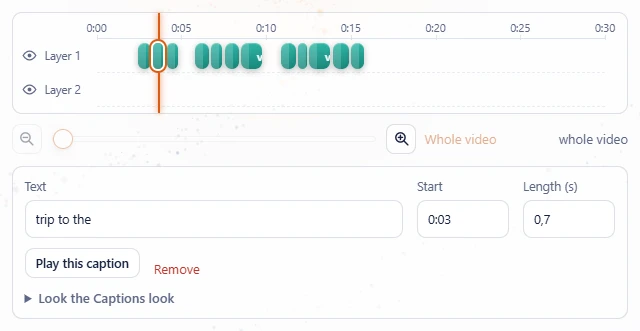
A caption on a higher layer is drawn above the first, handy for a title over the spoken words.
11Join videos
Add an intro or outro
- Upload the intro (or outro) in step 1, then click the main video again.
- Open Trim and under Add a video, choose it as Before or After.

Join several uploads
- Tick the uploads in step 1 and press Join selected.
- Put them in order with the arrows, check the File name and press Join.
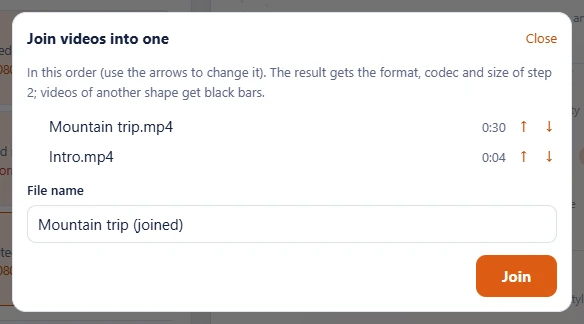
The result uses the format, codec and size of step 2. Videos of another shape get black bars; a video without sound gets silence.
12Check and convert
- Move the preview's Time slider over the video, or press Play to watch 20 seconds with sound, effects, music, subtitles and captions, exactly as the conversion makes them.
- Press Export (the Edit and Studio pages say Export, the Convert page Convert) and download the result from the Queue in the top bar (see Download your files).