

Frequently asked questions
Short answers, with links to the step in the Convert, Edit or Studio tutorial when you want the whole story.
Getting started
What is Solar?
A website that converts videos (and sound files) into another format, size or quality, and lets you edit them on the way: trim, rotate, crop, effects, music, subtitles and animated captions. It runs on your own server, which does the work with its graphics card when it has one. You only need a browser.
Do I need an account or to install anything?
Not for converting: the Convert page (/convert) is free and works without an account, and the page remembers your files in your browser. The Edit and Studio pages need a free account: press Register at the top right, enter your email address and a password, and you are signed in. Nothing to install. Some servers also ask for one shared password when you open the site, set by its administrator.
Why does Edit or Studio ask me to sign in?
The Edit and Studio pages keep your work on the server for longer and under your own account, so they need one. Opening /edit or /studio signed out shows the sign-in window on the Convert page; after signing in (or registering) you go straight to the page you asked for. Files you uploaded in this browser before signing in become yours.
The password needs at least 10 characters with an upper and a lower case letter, a number and a symbol, and must not contain your email name; the list under the password field ticks off each rule. You stay signed in on this device for 7 days of use (up to 30 days in all). Sign out is in the account menu (your initial at the top right).
What is the quickest way to convert a video?
- Drop the file on Upload a video.
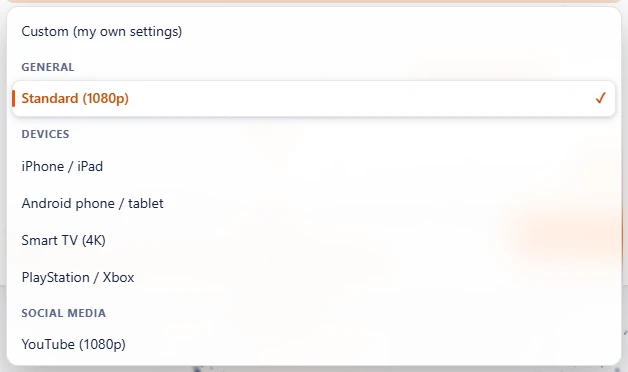
- Pick a preset in step 2 (or keep Standard (1080p), which plays everywhere).
- Press Convert.
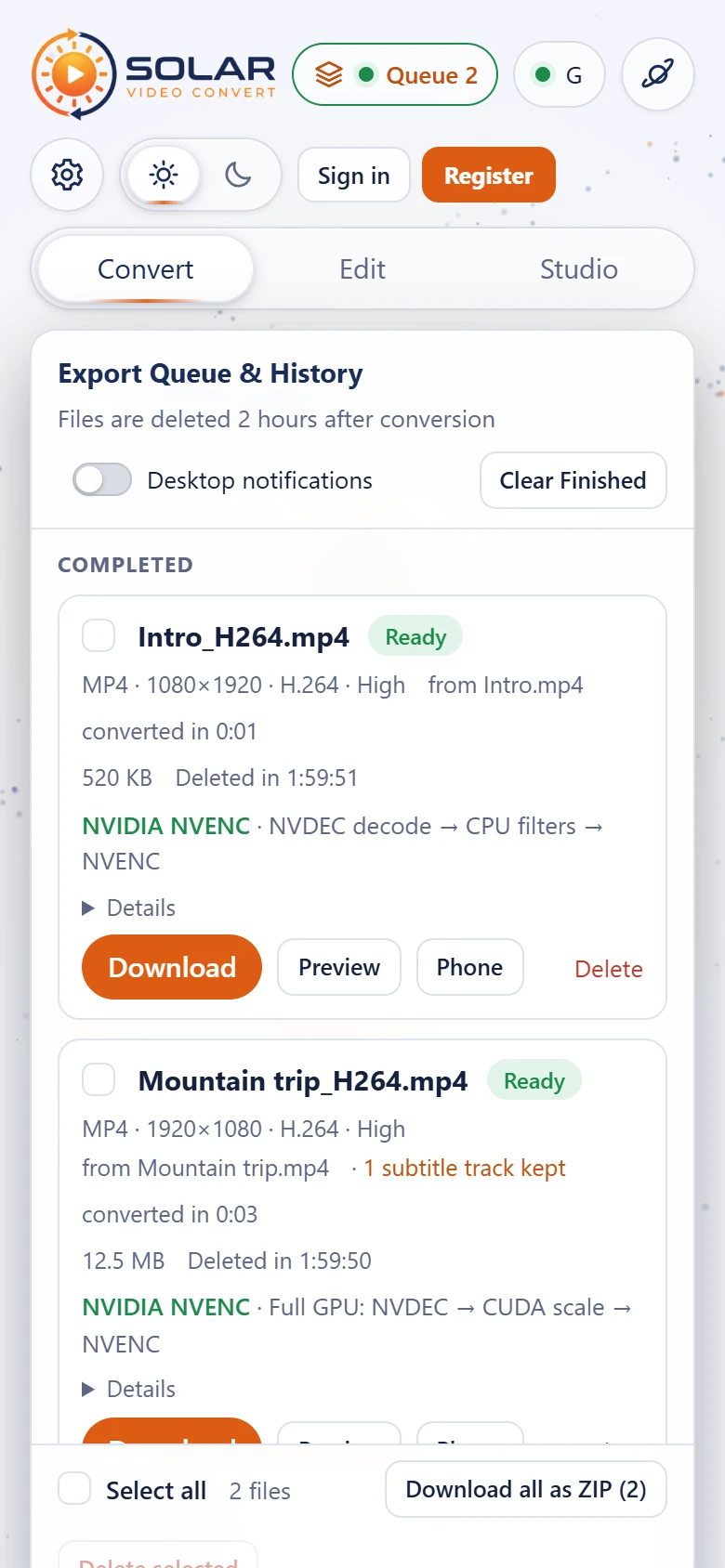
- Open the Queue at the top right and press Download.
Step by step with pictures: Convert tutorial.
Can I use it on my phone or tablet?
Yes. The page works in any modern browser on phones and tablets (Safari, Chrome, Firefox, Edge, Samsung Internet). You can upload straight from your camera roll.
What is the difference between the Convert, Edit and Studio pages?
The Convert / Edit / Studio switch next to the logo picks the page.
- Solar Video Convert: upload, presets, trim, format, size and quality, sound settings (codec, less noise, even volume), subtitles (keep, add a file, burn in), convert and download. See the Convert tutorial.
- Solar Video Edit: all of that, plus picture changes (rotate, crop, colours, stabilise), effects, music and sounds on a timeline, automatic subtitles, animated captions, and joining videos. Its logo says SOLAR VIDEO EDIT. See the Edit tutorial.
- Solar Video Studio: the Edit page's features as an editor workspace for advanced video editors, after Adobe Premiere Pro: projects, a Source panel, one timeline with video and audio layers, Effect Controls, sound effects, an Audio Clip Mixer and an export range. New editing tools are tried out there first. Its logo says SOLAR VIDEO STUDIO. See the Studio tutorial.
Each page has its own address: /convert, /edit and /studio. Convert needs no account; Edit and Studio need one (why). The page you used last opens next time. Edits made on the Edit page stay with the file, but the Convert page leaves them out of its preview and conversions.

Does it cost anything? What are Free, PRO and Premium?
Everything is free for now and everyone can use every page. Later there will be plans: Free (the Convert page, with the watermark when the server has one), PRO (the Convert page without the watermark) and Premium (the Edit and Studio pages with every feature). Nothing is limited yet.
Why are the sections in step 2 open or closed?
Trim, Customize, Picture, Effects, Audio, Subtitles and Captions open and close with a click on their heading. A closed heading still shows when something inside is in use.
The sections you open stay open when you refresh the page, each page (Convert, Edit, Studio) with its own. A hard refresh (Ctrl+F5, or Ctrl+click on the reload button), a new tab or a new window closes them all again.
Uploading
Which files can I upload?
Almost every video format: MP4, MKV, AVI, WebM, MOV, WMV, FLV, TS / M2TS, MPEG, VOB, 3GP, OGV, M4V and more, plus sound files such as MP3, WAV, FLAC, M4A and OGG. The administrator can block some formats; the page then tells you.
How big can a file be?
The limit is shown under the upload area (for example up to 50.0 GB). It is set by the administrator. Files are sent in 16 MB pieces, so large files upload reliably.
Can I upload several files at once?
Yes: choose or drop several files together. They upload one after another and each gets its own settings. Tick them and press Convert selected to convert them all. See Several files at once.
My upload is slow or stopped. What can I do?
The speed depends on your connection to the server. Keep the page open until the bar reaches 100%; closing or reloading the tab stops the upload, and you can start it again. If the page says uploads are paused, the server is low on disk space or in maintenance: try again later.
When an upload fails or is cancelled, its bar stays with the reason: Retry sends the same file again, Dismiss hides the message. A finished upload's bar hides itself after half a second.
Converting
Which format and codec should I choose?
- Not sure? MP4 with H.264 (the Standard preset): plays on every phone, TV, computer and website.
- Smaller files, same quality: H.265 / HEVC (newer devices) or AV1 (newest devices and browsers).
- For a website: the Website preset, or WebM with VP9.
- For editing in a video program: the Video editing (ProRes) preset.
- Only the sound: MP3 or M4A.
Easiest of all: pick the preset for where the video is going. See Pick a preset.
How long does a conversion take?
It depends on the length, the size and the server. With a graphics card, a 1080p video usually converts many times faster than it plays (a 30-second clip can take 1 to 3 seconds). On a processor only, or with heavy settings (4K, AV1, stabilise, effects), it takes longer. Step 3 shows the speed and the time left.
Why does my conversion say "Waiting"?
Everyone shares one queue, first come first served, and the server converts a limited number of files at the same time. Waiting · #3 means two conversions are ahead of yours. It starts by itself; meanwhile you can keep editing and converting other files.
What do GPU, NVENC, Quick Sync and "CPU only" mean?
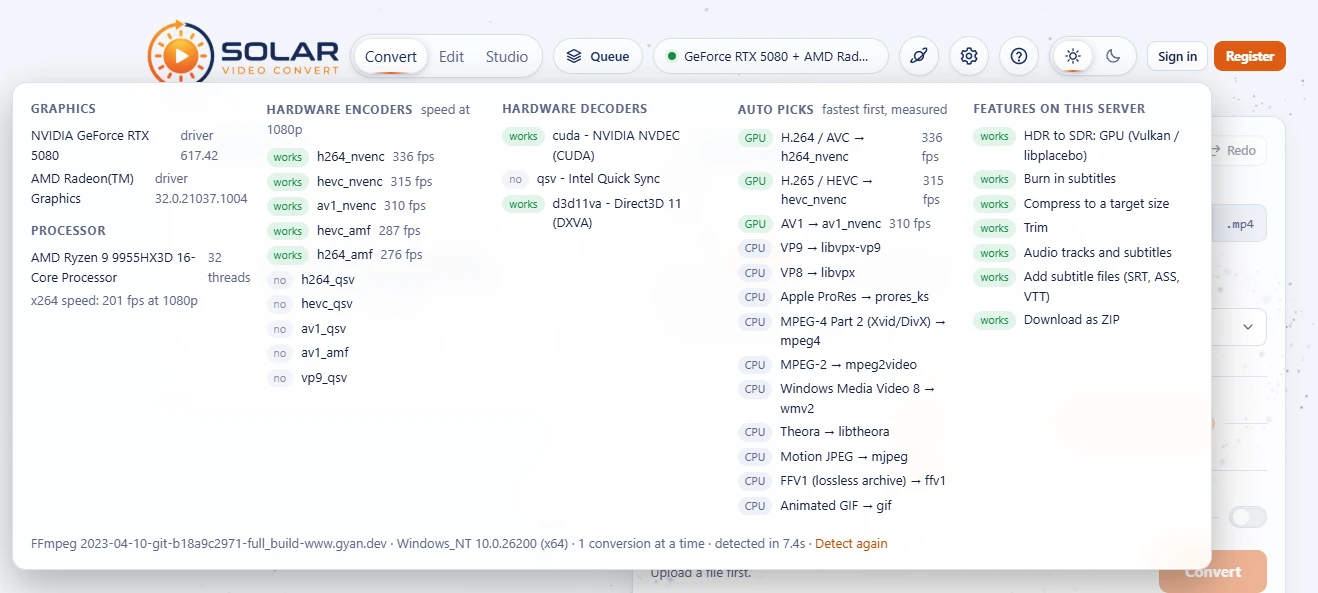
A GPU is a graphics card (or the graphics built into the processor). It converts video much faster than the processor (CPU). NVENC (NVIDIA), Quick Sync (Intel), AMF (AMD), VideoToolbox (Apple) and VA-API (Linux) are the names of their video encoders. The server tests them itself and uses the fastest that works for each codec. "CPU only" means no usable graphics card was found: slower, same result. Click the badge at the top of the converter for details.
Can I convert the same upload more than once?
Yes. Change the settings and press Convert again, for example once for YouTube and once for WhatsApp. The upload stays until 2 hours after its last conversion.
I picked 5120×1440 but got 2560×1440. Why?
With the resize mode Fit inside (keep aspect ratio), the video keeps its own shape and is made as large as fits inside the size you picked. For exactly that size, choose a resize mode starting with Exact size (black bars, crop or stretch). A note under the resize mode tells you when this happens, and the file name shows the real size. Never upscale also keeps small videos at their own size.
How do I make a vertical video for TikTok, Reels or Shorts?
Choose the preset Instagram Reels / TikTok / Shorts: 1080×1920 with black bars above and below a landscape video. For no bars, open Customize and set the resize mode to Exact size, crop to fill (the sides are cut off). Animated captions make these videos stand out: see Animated captions.
Can I make a GIF, or get only the sound as MP3?
Yes. In Customize, set the format to GIF (animated), best with a small resolution and a trim. For the sound only, choose the preset Audio only (MP3) or a sound format such as M4A, WAV or FLAC.
Can I change the format without losing any quality?
Yes: set the video codec to Copy (and the audio to Copy original audio). The streams are put in the new file as they are, which takes seconds. This only works when the new format supports the codec, and edits, resizing and burned-in subtitles are then not possible.
My phone video looks grey and washed out after converting. Why?
It is an HDR video. Leave HDR on Convert to SDR (the default, in Customize): the colours are converted so they look natural on every screen. Choose Keep HDR only when it will be watched on HDR screens.
Can every new upload start with my favourite format and codec?
Yes. In Settings, Cloud Export & Notifications, pick the Default format and video codec. Without them a new upload starts with the settings you used last (Standard (1080p) the very first time). Each upload still keeps its own settings once you change them.
How loud does "Even volume" make the sound?
-16 LUFS by default, right for the web and phones. In Settings, Captions & Audio, the Loudness target can be -14 (Spotify, YouTube and other streaming), -18, -23 (European broadcast) or -24 LUFS (American broadcast). Even volume re-encodes the sound, so it needs an audio codec, not Copy original audio.
My conversion failed. What now?
The Queue (top right) shows the reason under the failed file. Common fixes: try another codec or format, choose a smaller resolution, or set the encoder to Auto. "Stopped by the system ... ran out of memory" means the server needed more memory: pick a smaller resolution. The administrator sees the full details in the error log.
Size and quality
How do I make a video file smaller?
- Choose a lower Quality (Small file or Tiny file) or a smaller Resolution (720p).
- Use H.265 / HEVC or AV1 instead of H.264: about half the size for the same quality.
- Or set Compression to a target size or a percentage of the original.
- Trim away what you do not need.
How do I make a video fit in 10 MB (Discord) or 25 MB (e-mail)?
Pick the preset Discord (fits 10 MB) or E-mail (fits 25 MB), or set Compression to Target file size (MB) and type the size. The server makes sure the file is no bigger, and converts again a little smaller if needed. See Compress to a target size.

Why is the expected size a range?
With a quality level, the size depends on the picture: calm scenes compress far better than fast action. The page shows a range from the settings. With a target size it shows the exact maximum.
Which quality setting should I use?
Balanced is right for almost everything. High for uploading to YouTube or keeping, Visually lossless only for archiving (very big files), Small or Tiny for sharing in chats. Custom (CRF) is for experts: lower numbers mean better quality and bigger files.
Editing
Can I undo a change?
Yes: Undo and Redo at the top of step 2, or Ctrl+Z / Ctrl+Shift+Z (Cmd on a Mac; you can change the keys, see keyboard shortcuts). Up to 60 steps per file while the page is open. Uploads, deletions and conversions are not undone.
Are there keyboard shortcuts? Can I change them?
Yes, and they follow Adobe Premiere Pro. They are in Settings (the gear at the top of the page), on the Keyboard Shortcuts tab: Ctrl+Alt+K or ? open it right there. The most used ones:
- Space plays or stops the preview, Ctrl+` shows it full screen; on the Studio page ` alone makes the panel under the mouse fill the window (press it again, or Esc, to put it back). J K L: play backwards, stop, play (press J or L again for 2× and 4×; backwards shows the picture without sound). ← → step one frame (with Shift five).
- I and O set the start and end of the trim at the playhead (on the Studio timeline the kept range lights up on the ruler); Ctrl+Shift+X clears them, Home / End go to them. Ctrl+Z undoes, Ctrl+Shift+Z redoes. Ctrl+M converts.
- On the Edit and Studio pages: Delete removes the selected block, Ctrl+K cuts at the playhead, ↑ ↓ jump to the previous / next edit point, Alt+← → nudge the selected block, = - zoom.
- On the Studio page: V selection tool, C razor, M adds a marker (Shift+M goes to the next one), Alt+M mutes the selected sound, video clip or audio layer (a selected video layer is hidden), or else the video's own sound.
To change a key, click it in the list and press the new key or combination. If another action on the same page already uses it, the list asks whether to move it. Default puts one action back, Reset all to the defaults (or Reset tab to defaults) all of them. The search at the top finds an action by its name or its key (for example ctrl+z). Your keys are kept in this browser. Ctrl is Cmd on a Mac. Shortcuts don't work while you type in a field: press Esc to leave it.
Where are the settings? Can I keep them for another browser?
Click the gear at the top of the page, or press Ctrl+, (Cmd+, on a Mac). The tabs on the left:
- Workspace & Layout: the timecode under the preview (clock, SMPTE
00:01:02:12or frames), light / dark and the background scene. - Keyboard Shortcuts: every key, see keyboard shortcuts.
- Playback & Cache: the preview's resolution (Full, 1/2, 1/4: smaller is quicker on a busy server, the result is not changed), how much this browser and the server keep, and Clear local preview cache.
- Timeline & Editing: what a video with sound inserts on the Studio timeline (ask, both, video only, audio only), magnetic snapping on the Studio timeline and how near it snaps (hold Alt while dragging to place a block freely), audio scrubbing (you hear the sound while you drag the playhead), and how long new effects, fades and captions are.
- Cloud Export & Notifications: the format and video codec a new upload starts with, a desktop notification when a conversion is ready, Download when ready, and the file name template (
{name},{date},{time},{preset},{format}). - Captions & Audio: the spoken language for captions and subtitles, the look of new captions, and how loud Even volume makes the sound (-14 LUFS for streaming up to -24 for broadcast).
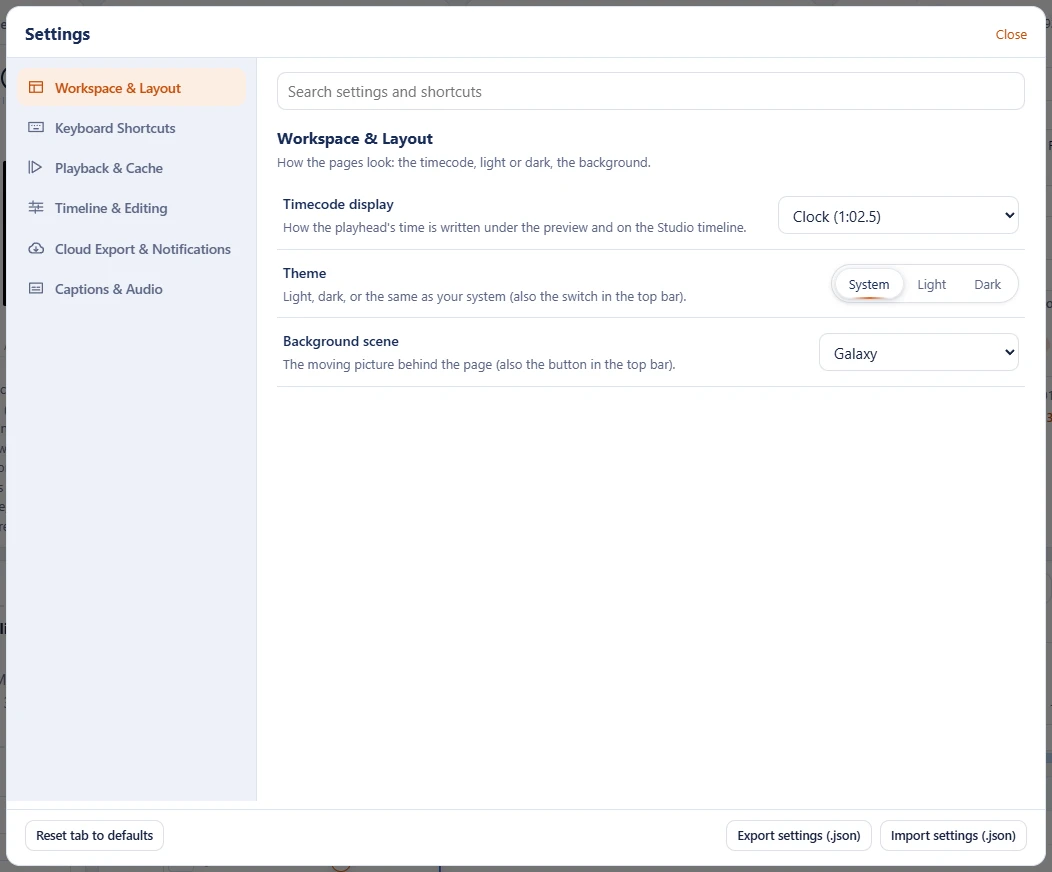
The search at the top looks through every tab and shows how many matches each one has. Reset tab to defaults puts the open tab back. Settings are kept in this browser: Export settings (.json) downloads them with your changed shortcuts, and Import settings (.json) on another browser or computer takes them.
My phone video is sideways. How do I rotate it?
On the Edit page, open Picture in step 2 and pick a rotation (90° clockwise, 180° or 90° anticlockwise). Videos that a phone marked as rotated are already turned the right way by themselves. See Picture.
How do I remove black bars?
On the Edit page, open Picture and click Remove black bars: the server finds them and fills in the crop. Or type the percentages for each edge yourself.
Can I make a small or old video bigger and sharper?
Yes, on the Edit page: open Upscale under Picture (in the Studio's Ultrawide workspace: the Upscale tab between Effect Controls and Audio Clip Mixer), pick 2×, 3× or 4× and choose a mode (with Quality or Best, also whether it is real footage or animation). Set Resolution under Customize to Original or 4K, or the result is scaled back to the preset size. Fast is a sharp resize without AI; Balanced, Quality and Best use AI (Real-ESRGAN) on the server's graphics card and are slower, but bring back much more detail. See Upscale.
Choosing a bigger Resolution in Customize only stretches the picture; Upscale is the way to add detail.
How do I add music or a voice-over?
On the Edit page: move the preview's Time slider to the start, open Audio and press Upload music or a sound.... Click the sound on the timeline to set its volume, fades and length. See Add music and sounds.
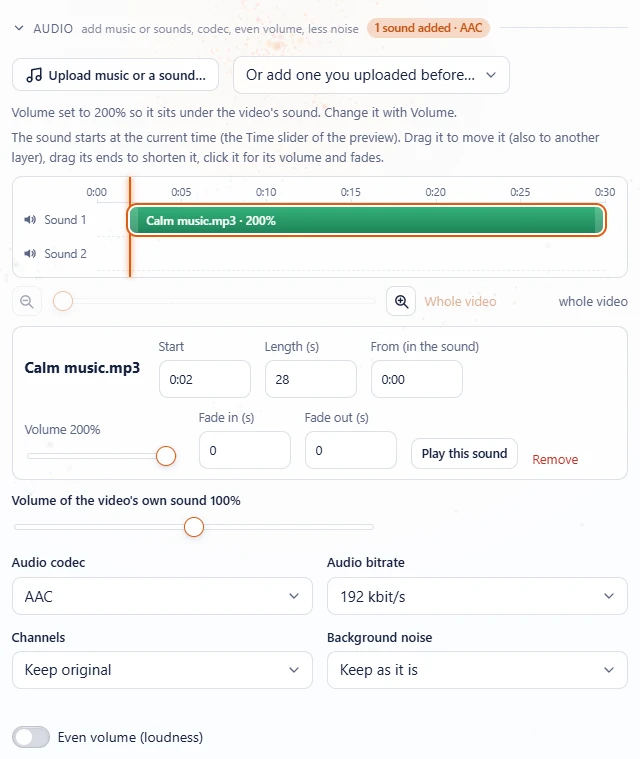
The music is too loud (or the voice is). How do I balance them?
Click the sound on the timeline and lower its Volume, or lower Volume of the video's own sound under the timeline. Press Play in the preview to hear the mix. A fade out at the end sounds smoother than a hard stop.
How do I add slow motion, a zoom or another effect?
On the Edit page, open Effects, move the Time slider to the moment, and choose the effect from the list. Drag its edges to change how long it lasts. Slow motion and fast forward change the length of the video; the sound follows. See Effects on a timeline.
Can I join several videos into one?
Yes, on the Edit page. Tick them in Your uploads and press Join selected, put them in order and press Join. To add an intro or outro to one video, use Add a video under Trim. See Join videos.
Why can't I see Picture, Effects, Captions or Join selected?
They are on the Edit page: click Edit in the switch next to the logo. On the Edit page, Picture and Effects are also hidden when the video codec is Copy (for example with the preset Only change subtitles) and for sound-only formats, because they need the video to be re-encoded. Choose another preset or codec and they come back.
Is the preview exactly what I will get?
Yes. The server makes the preview with the same settings as the conversion: size and shape, crop, colours, effects, subtitles, captions and watermark. Play under the preview plays 20 seconds with sound from the moment you picked.
Studio
How does the Studio page work?
The Studio page is laid out like a video editor (after Adobe Premiere Pro), in four steps. The Studio tutorial walks through all of it with pictures.
- Project bin (top left): the files of the open project (switch or start projects in the top bar, see How do projects work in the Studio?). Uploads land here, not on the timeline. Like Premiere's Project panel it has a List view (Frame Rate, Video Info and Audio Info columns), an Icon view (poster frames you scrub by moving the mouse over them) and a Freeform view, bins (folders) and label colours; Ctrl + mouse wheel makes the items bigger or smaller (see the project bin). Drag a file onto the timeline or select it and press Enter; a video with sound asks for both, video only or audio only. Unlike the Convert and Edit pages, Studio does not show the file details (container, length, size, codecs) under the list.
- Preview (top right): the sequence at the playhead as it will be, with every layer, effect, sound, subtitle and caption. Click the picture or press Space to play it.
- Timeline (full width): Sequence 01, 20 minutes long, there from the start, also before any file is on it. One ruler with open tracks: the video tracks V3, V2, V1 (video clips and picture effects; the higher one is drawn on top), the Captions tracks above them (drawn over every video track, each with an eye) and the audio tracks A1, A2, A3 (the sound of videos, music, sounds and sound effects). No file is special: a video's own sound is an ordinary clip on an audio track, linked to its picture. Subtitles appear on top when you switch them on. Clips go anywhere, with gaps between them (see Can I put a clip anywhere on the timeline?). + Effect at the playhead adds an effect at the playhead (the blue line), on the selected track or the lowest free one; + Track adds a video or audio track, captions or subtitles. Drag a block to move it (also to another track of its kind), drag its ends to change its length, and click it for its settings. Double-click a video track to add a caption there. The arrow (V) selects and moves blocks, the razor (C) cuts the block you click in two.
- Export Media (full width): file name, preset, Export Range, the video settings (format, codec, encoder, size, frame rate, quality) and the audio settings (codec, bitrate, channels, less noise, even volume), then Export. Export turns on as soon as the timeline has clips (an empty sequence says so) and shows how long the render is and the expected file size. Exports are followed in the Queue in the top bar (see How do I export from the Studio?).
Video layers stack like in an editor. The highest layer is drawn on top, then the one under it, and so on down to V1. A layer's effects work on the picture of the layers under it, and its captions are drawn over that. Each video layer has an opacity slider: at 40% you see 40% of the layer over the picture under it. Slow motion and fast forward change the timing of the whole video, so their layer's opacity does not apply to them. Burned-in subtitles are always on top.
Audio tracks stack from A1 down. Each layer adds its music and sounds at its volume, and its sound effects (mute, louder, quieter, muffled, telephone, bass boost, lo-fi, tremolo, vibrato) work on its sound and the tracks above it in the list (A1, A2, ...). For sound effects the volume is how much of the effect you hear: 100% all of it, 40% a bit. The eye at the start of a video layer hides it; M and S mute and solo an audio layer (see the track heads). Click a layer's name for a bigger slider (on a phone the slider is only there). Sound effects and layers are only on the Studio page; the Edit page leaves sound effects out.
How is the Studio laid out on a wide or ultrawide screen?
The Studio page has one layout, Ultrawide editing, after Premiere Pro's editing workspace: made for 21:9 and 32:9 screens, it fits any other screen too. (The Standard 16:9 layout was removed in 1.30.)
- Two rows of panels side by side. At the top, four panels: Effect Controls (the selected clip's settings, with Upscale and the Audio Clip Mixer as tabs; Upscale only while the admin has it switched on), the Source monitor, the preview (Program) and Export Media. At the bottom, the project bin, the timeline across the rest of the screen with the tools (selection, razor) in a column on its left, and audio meters (left and right, -60 to 0 dB) that move while something plays. The workspace fits the screen (21:9, 32:9 or any other) and the page never scrolls: the pictures and meters scale and keep their shape, extra tracks scroll inside the timeline, and only long settings and lists scroll inside their own panel. Your exports are in the Queue in the top bar.
In a window narrower than 860 pixels the panels are under each other.
The panels are:
- Effect Controls: the settings of the selected clip, effect, sound or caption.
- Captions (after the Audio Clip Mixer): speech detection, the looks and fonts, SRT / VTT import and a selected caption's words and times.
- Subtitles (after Captions): the sources, automatic subtitles, translation and the subtitle settings.
- Source (a panel of its own, between Effect Controls and the preview): a file of the bin as it is, before it goes on the timeline. Pick it in the list (or double-click it in the bin), move Time to look through it, the play button plays a short part (press it again to stop), and Insert to timeline puts it at the playhead. The clip selected on the timeline is not shown here: its settings are in Effect Controls.
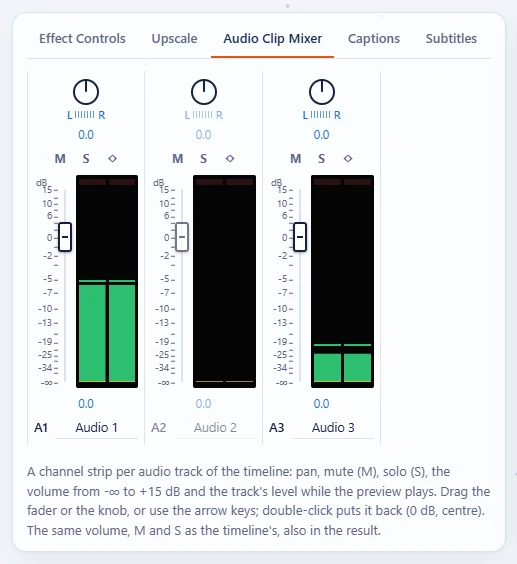
- Audio Clip Mixer: a channel strip per audio track (A1, A2 ...) with a balance knob, mute, solo, a fader and a VU meter (see How do I mix the sound?).
- Properties: file name, preset, the video settings and Export. Color Correction: brightness, contrast and saturation of the selected video clip or video track. Essential Sound: the audio settings.
The search box above the items in the bin shows only the items whose name, type, frame rate or size contains what you type. Press ` with the mouse over any panel to make it fill the window; press it again or Esc to put it back.
Resize the panels by dragging the gap between two of them (also between the two rows, and on each side of the Source monitor; no top panel gets narrower than 240 pixels); an edge dragged near an edge of the other row snaps to it. A double-click on a gap puts that split back, and Reset the panel sizes (a Studio shortcut action) puts them all back. The sizes are kept in this browser. See The Ultrawide editing workspace.
How do projects work in the Studio?
A project is one piece of work on the Studio page: its own bin (the files you use in it) and its own timeline with all its clips, sounds, effects, captions and settings. The project bar in the top bar, right of the Studio switch, shows the open project:
- Project switches to another project; the page shows its bin and timeline straight away.
- New project starts one with an empty bin and an empty timeline and lets you type its name.
- Rename changes the name (Enter keeps it, Esc keeps the old one).
- Delete removes the project and its timeline. Its files stay in your uploads.
Files you upload on the Studio page go into the bin of the open project only, not onto the timeline. To use one, drag it onto the timeline, select it and press Enter, or right-click it, Insert at the Playhead (a double-click opens it in the Source panel). For a video with sound a small window asks what to insert: Both (video + audio) (the default, Enter picks it) puts the picture on a video layer and its sound, linked to it, on an audio layer; Video only leaves the sound out; Audio only puts just the sound on an audio layer. Insert does it, Cancel does nothing. Sound files and videos without sound skip the question. A clip that lands where a layer is already busy goes onto the next free layer.
Two projects can use the same file without seeing each other's edits. Projects are kept in this browser, like your other settings, so another browser or a private window starts without them.
How do I cut parts out of a video in the Studio?
The Studio page has no Trim: every video, and its sound, is a clip on the timeline that you shorten, cut and move.
- Shorten a clip: drag its start or end. Drag it back out to bring the part back.
- Cut: pick the razor (C) and click where to cut, or put the playhead there and press Ctrl+K. Its linked sound is cut with it.
- Remove a part: cut it off, click it and press Delete: a gap stays (drag the next clip over to close it).
- Make two pieces one again: select the first one and press Join with the next piece under the timeline.
- Take only part of a file in the first place: mark it in the Source panel (see Mark In and Mark Out).
A clip and its sound are linked and change together until you press Unlink its sound (or switch Linked Selection off). To show a part twice, insert the file again. On the Edit page the Trim still works.
Can I put a clip anywhere on the timeline, with gaps?
Yes. The sequence is an open canvas: drop a file from the bin on any video or audio track at any moment (a tip says where it lands, for example on V2 at 7:30), also the very first one, and drag blocks along their track or onto another track of their kind. Where no video clip is, the result is black; where no sound is, silent. The preview shows it the same way. See Place clips freely.
Why does the Studio say "Collision detected"?
The Source panel's Insert never overwrites or moves what you placed: when a targeted track (the blue V and A buttons in the track heads) already holds media between the playhead and the end of the part, nothing is inserted and the alert says so. Target another track, or move the playhead to an empty space, and insert again. Insert to timeline, drops and pastes don't stop: they put the clip on the next free track of its kind instead. Two speed effects (slow motion, fast forward) can't overlap either: the timeline warns and only the first one is used.
Can the Studio sequence be longer than 20 minutes?
Yes. Drag the ▶ handle of the blue duration bar under the ruler to the right, or hold it at the right end: the sequence grows while you hold it (30, 45, 60 minutes and more), and the timeline fits the new length when you let go. Drag ▶ to the left to shorten it, down to the end of the last clip. The Out bracket of the work area (the Mark Out handle) works the same way: drag it to the right end of the timeline and hold it there, and the sequence keeps that length when you let go. Drag the Out back to shorten the work area; once nothing reaches past 20 minutes the sequence goes back to 20 minutes. A clip placed past the end makes it longer by itself too. See Sequence length and the work area.
Can I make a vertical (9:16) or square video in the Studio, or several cuts in one project?
Yes. Every sequence has its own format, picked in the New Sequence window: 1080p, 4K, 9:16 Vertical, 1:1 Square, 21:9 Ultrawide or a custom size, and a frame rate from 23.976 to 60 fps. A project can hold as many sequences as you like, each in a tab over the timeline: a 16:9 cut and a 9:16 cut of the same files, for example. Clips of another shape are fitted inside with black bars; Effect Controls, Motion, scales and places them. Double-click a tab, or Sequence Settings... in the bin, to change a sequence's format. See The open 20-minute sequence.
Can I put one sequence inside another (nesting)?
Yes. Drag a sequence from the project bin onto a track of the open sequence, or right-click it and pick Nest in the Open Sequence. It becomes one clip, as long as its content, with its sound linked on an audio track. Double-click it to edit that sequence in its own tab: the changes show wherever it is nested. A sequence can't be nested in itself or in one that is nested in it. The watermark is only added to the final export, never inside the nested clip.
What are editing proxies, and does the Proxy switch change my export?
A proxy is a lighter copy of a file, made only for editing, so the Program and Source monitors scrub and play smoothly. The size is picked from a benchmark of this browser (hardware decoding, decoding speed) and of the server's encoder, repeated once a week: 540p on modest hardware, 720p or 1080p on faster machines, never bigger than the sequence. You can pick 540p, 720p or 1080p yourself in Settings, Playback & Cache. Proxy | Original in each monitor switches between the proxy and the file itself. The export always uses the originals, whatever the switch says.
No proxy is made by itself: a video larger than 1080p asks Generate Proxy or Use Original Footage when it comes into the project bin, and 1080p or smaller always plays the original. Changed your mind? Right-click the file in the project bin and pick Generate Proxy or Use Original Footage.
A proxy taking too long, or made by mistake? Press Stop next to Generating proxy in the Program or Source head, or select the files in the project bin, right-click and pick Stop Proxy (Stop N Proxies for several). The unfinished copy is deleted and the original plays. Deleting an original from the bin stops and removes its proxy too.
Can I put a video on top of another one, like picture in picture?
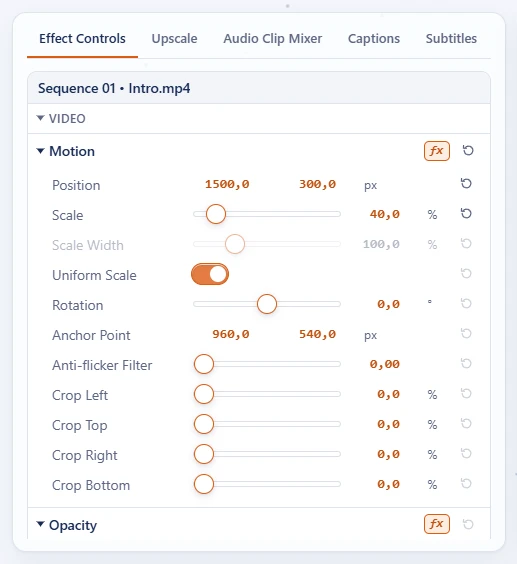
Yes, on the Studio page. put it on a higher video track than the first (V2 over V1) at the same time: drop it there, or click the track and insert it at the playhead. Size and place it with Motion in Effect Controls (Position, Scale, Crop). It is drawn with its layer's opacity, effects and captions, in the preview and in the result.
Its sound goes on an audio layer, linked to it with a chain mark: they move, shorten, cut and are removed together. Unlink its sound lets them go their own way.
Picture settings per layer. Each clip's position, scale, rotation and crop are its Motion in Effect Controls. Colours, flip and stabilise are in the Color Correction panel: click a video clip for its own picture, or the name of a video track (or one of its clips) for the picture of the clips on that layer. Each has its own settings, and undo / redo works on them like on the rest.
How do I select several blocks, copy and paste, or delete a layer in the Studio?
- Select more than one: Ctrl+click blocks (clips, sounds, effects, captions) or layers. Delete removes all of them in one step, which one Ctrl+Z brings back.
- Copy, cut and paste: Ctrl+C, Ctrl+X and Ctrl+V. Pasting puts the blocks at the playhead, and never on top of a block that is already there: they move along to the first free spot.
- Delete a layer: select a video or audio layer (click its name) and press Delete or Delete layer. Everything on it goes too.
- Move a block to another layer: drag it up or down onto a layer that is there. New layers come from + Track.
What do V1 / A1, the eye, M and S and the buttons above the timeline do?
- V1, V2 ... / A1, A2 ... at the start of each layer are the target buttons, blue when targeted (V1 and A1 at first). The Source panel's Insert puts its part on the targeted tracks. Clicking a layer targets and selects it, so inserts, drops, new effects and pastes go there.
- The eye hides a video layer. M mutes an audio track; S solos it: while any track is soloed, only soloed tracks are heard in the preview and in the result.
- The big blue timecode is the playhead (clock, SMPTE or frames in Settings).
- Snap in Timeline (the magnet, S): blocks stick to edges, the playhead, markers and In / Out while you drag. Hold Alt to place freely; the distance is in Settings.
- Linked Selection (the chain): a video clip and its own sound move, trim and delete together; off, each goes its own way.
- The wrench opens Settings on Timeline & Editing.
See The 20-minute sequence in the Studio tutorial.
How do I insert only part of a file (Mark In and Mark Out)?
Use the Source panel (between Effect Controls and the preview). Pick the file, move Time to the start of the part and press { Mark In (I), move to its end and press Mark Out } (O). The part lights up on the scrubber with its length. Insert (,) puts it at the timeline's playhead on the targeted tracks and moves the playhead to its end; Clear In/Out (Alt+X) goes back to the whole file. When something is already on a targeted track at that time, nothing is inserted and a message says why. Without Mark In and Out you can still drag a clip's ends on the timeline afterwards. See Mark In / Out in the Source panel.
How do I move, resize, rotate or crop a clip, or make it see-through?
Select the video clip and open Effect Controls. Motion has Position, Scale (and Scale Width when Uniform Scale is off), Rotation, Anchor Point, Anti-flicker Filter and Crop Left / Top / Right / Bottom (in percent); Opacity has the opacity and a Blend Mode (Normal, Multiply, Screen, Overlay, Darken, Lighten, Difference). The preview follows at once while you drag or type, and each change is one step to undo. The fx switch of a block leaves it out without losing its values; the round arrows reset one value. See Effect Controls.
Can I speed up or slow down one clip in the Studio?
Yes: select the clip and set Time Remapping in Effect Controls: 50% plays it at half speed, 200% twice as fast. Its linked sound follows. To slow down the whole video at a moment, use the Slow motion, Super slow motion or Fast forward effect from + Effect at the playhead; the sound follows with its pitch kept.
How do I mix the sound: pan, faders, mute and solo?
Open the Audio Clip Mixer tab. Each audio track (A1, A2, A3 and every track you add) has a strip, added and removed with its track, with a balance (pan) knob (left -100 to right +100, double-click centres it), M (mute), S (solo), a fader from -∞ to +15 dB (double-click: 0 dB) and a meter that moves while the preview plays (green, yellow from -6 dB, red over 0 dB, with a clip light you click to clear). The faders and buttons are the same as the sliders and M / S on the timeline, and you hear a change at once while the preview plays. The pan is in the result too. See The Audio Clip Mixer.
Can I make a voice sound like a telephone, or muffled behind a wall?
Yes, on the Studio page: pick a sound effect from + Effect at the playhead: Mute, Louder, Quieter, Muffled (behind a wall), Telephone, Bass boost, Lo-fi, Tremolo or Vibrato. It goes on an audio track and works on the sound of that track and the tracks above it (A1, A2 ...). Drag its ends for how long it lasts; the layer's volume is how much of the effect you hear. Louder parts go through a limiter so they never clip. The Edit page has no sound effects.
How do I export from the Studio, or only part of the timeline?
Press Export (Ctrl+M) in the Export Media panel. It turns on as soon as the timeline has clips, without an upload of its own: the line next to it says how long the render is, and an empty timeline says The sequence is empty. The render runs on the server while you keep editing; follow it and download it from the Queue button at the top right (see Download your files).
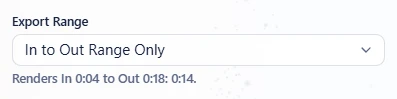
For only a part, set the work area: click the timeline, put the playhead at the start and press I, then at the end and press O (or drag the brackets under the ruler). Then set Export Range in Export Media to In to Out Range Only; the line under it says what will be rendered, and the expected size follows. Entire Sequence exports everything. Alt+X clears the work area. See Export and the Queue.
Can I put markers on the Studio timeline?
Yes: M adds a marker at the playhead (or removes the one there), Shift+M goes to the next one and Ctrl+Shift+M to the previous one, Ctrl+Alt+Shift+M clears them all. Blocks snap to markers. They are kept in this browser and are not in the result.
Why is part of my Studio video black or silent?
There is a gap there: no video clip on any video track (black), or no sound on any audio track (silent), after a Delete or because a clip was moved or shortened. Drag the next clip over to close the gap, or drag a clip's end back out. A muted (M), hidden (eye) or soloed-away track, or an opacity or volume of 0%, also hides or silences it.
Is my Studio work saved? Can I open it on another computer?
Every change is kept at once in this browser, per project, also over a reload; there is no Save button. Undo and redo work while the page is open. The files themselves are on the server and are deleted 2 hours after their last conversion (or after uploading, when never converted), so finish and convert a project the same day. Another browser or computer does not see your projects. Export settings in Settings takes your settings and keys along, not your projects.
Subtitles and captions
What is the difference between subtitles kept as tracks, burned-in subtitles and captions?
- Kept as tracks: stored next to the picture; viewers switch them on or off and choose a language in their player.
- Burned in: drawn into the picture, always visible, in any format and on any site.
- Captions: the spoken words big and animated in the picture, the way social media videos do it, in a style you choose.
How do I add my own subtitle file?
Open Subtitles, press Add subtitle file... and choose an SRT, ASS / SSA or VTT file. Then keep it as a track or burn it in. See Subtitles.
Can I change the font, size or colour of subtitles?
For burned-in subtitles, yes: font, size, colour, outline and shadow, shown in the preview. Subtitles kept as tracks are drawn by the viewer's player in its own style.
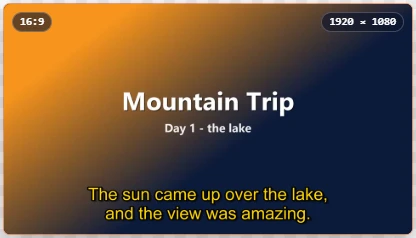
The subtitle language is wrong, or shows as unknown.
The language is recognised from the text itself or the file name (Film.nl.srt). Change it with the language list next to the track. Old SRT files in other character sets (Turkish, Greek, Cyrillic...) are converted automatically, so letters show correctly.
Why can't I keep subtitle tracks in my format?
Only MKV, MP4 / MOV and WebM can hold subtitle tracks (MKV holds every kind, also Blu-ray and DVD picture subtitles). For AVI, GIF and other formats, burn the subtitles in.
Can the converter write subtitles for me?
Yes: Automatic subtitles in the Subtitles section of the Edit page listens to the speech and writes subtitles in the spoken language, optionally with a translation. See Automatic subtitles. On the Studio page it listens to the open sequence (or one of its audio tracks) and puts the subtitles on a new Subtitles track above the video tracks as blocks you can move, trim, cut and restyle: see Subtitles and captions. If the box says Whisper is not installed, the administrator adds it by running the installer again.
Why are the subtitles switched off in the Studio?
The Studio starts every new file with No subtitles, so the subtitle tracks inside a video are not carried into the export by surprise. Turn on the switch at the end of the Subtitles heading, or click the eye of the Subtitles track, to keep them as tracks or burn them in. Pressing Make subtitles switches them on by itself. The Convert and Edit pages still keep a video's subtitles by default. See Subtitles and captions.
Do I have to wait for the automatic subtitles before exporting?
No. As soon as you press Make subtitles they are in the subtitle list, ticked to keep or chosen to burn in. Press Export whenever you like: the export waits in the Queue (Waiting for the subtitles) and starts once they are made. If they are cancelled or fail, the export fails and says why.
Is my video sent to an online AI service for subtitles or captions?
No. Speech recognition (Whisper) and translation run on this server itself. Nothing is sent anywhere.
How do I add animated captions like on TikTok?
On the Edit page, open Captions, press Detect speech, then pick a look such as Karaoke or Pop. See Animated captions.
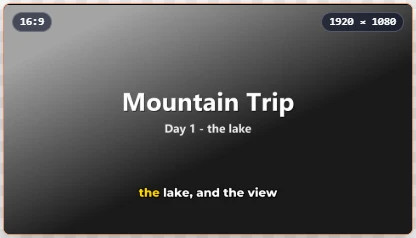
A caption has a wrong word or the wrong timing. How do I fix it?
Click the caption on the captions timeline and fix the Text, Start or Length, or drag it and its edges. The preview follows while you type. See Edit the captions.
Detect speech found no words, or missed some.
Music, noise and silence give no words, on purpose. Pick the Spoken language instead of automatic and try again, or add missing captions with Add a caption here. Clear speech gives the best results.
Your files
How long are my files kept?
Converted files can be downloaded for 2 hours after they are finished on the Convert page (the countdown is on each file), and an upload is deleted 2 hours after its last use. With an account the Edit page keeps files 8 hours and the Studio 48 hours. Without an account everything is gone within 2 hours. The administrator can change these times for each page.
Can I delete my files myself?
Yes, at any time: Delete next to an upload or a conversion, or tick several and press Delete selected. They are removed from the server straight away.
How do I get the converted file on my phone?
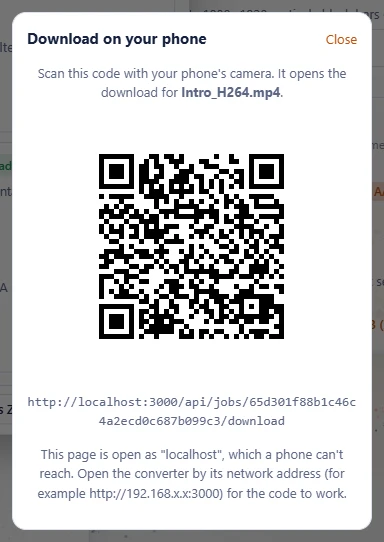
Press Phone next to the finished file and scan the QR code with your phone's camera. The phone must be able to reach the server. See On your phone.
Can I download everything at once?
Yes: Download all as ZIP at the bottom of the Queue (top right) saves every finished file, or only the ticked ones, as one ZIP.
Can the page tell me when a conversion is ready?
Open the Queue (top right), switch on Desktop notifications and allow them: your browser tells you, even while you are in another tab. The tab title also shows the progress. The same switch is in Settings, Cloud Export & Notifications.
Can a finished file download by itself?
Yes: switch on Download when ready in Settings, Cloud Export & Notifications. Every conversion you start in this browser is then saved as soon as it is finished, while the page is open.
Can I choose how converted files are named?
Type a name in File name for one file, or switch Codec, Resolution and Aspect ratio on or off under it (see Name the file). For every file at once, set a file name template in Settings, Cloud Export & Notifications, for example {name}_{preset}_{date}. It knows {name} (the original name), {date}, {time}, {preset} and {format}.
My list of files is empty on another computer, or after clearing my browser.
The list lives in the browser that uploaded the files, so nobody else (and no other browser) can see it. Clearing the browser data removes the list; the files are still deleted after 2 hours.
The preview of a converted file does not play.
Your browser cannot play that codec (for example HEVC or ProRes in some browsers). The file itself is fine: download it and play it in a video player.
Privacy
Who can see my files?
Only you. Signed in, your files belong to your account: the server checks it on every request, and nobody else (signed in or not) can open them. Without an account, every file gets a random, unguessable id and only the browser you used knows it. There is no list of everyone's files. Administrators see the names of conversions in the queue and of failed ones, and the server's owner can see the files while they exist.
What is stored about my account?
Only your email address, a one-way hash of your password (never the password itself), whether the account is an admin, verified or disabled, and per device you are signed in on: when the sign-in started and ends, the browser's name and a one-way hash of your address (never the address itself). Nothing else is asked or kept. The server's audit log masks addresses (the last part is zeroed) and keeps entries for 90 days.
Files converted without an account are deleted within 2 hours.
How do I download my data or delete my account?
Open the account menu (your initial at the top right):
- Download my data: a JSON file with everything kept about your account, your uploads with their captions and subtitles, your conversions and their settings, plus the Studio projects this browser keeps.
- Delete account…: enter your password and tick the box. The account and every file of it (uploads, editing proxies, captions, subtitles, nested sequences and converted files) are deleted at once. This cannot be undone.
- Change password: your other devices are signed out.
Does the site track me?
The server counts visits with a first-party cookie to show usage statistics to its administrators. IP addresses are stored anonymised, and no names, e-mail addresses or file names are kept in the statistics. Nothing is shared with other companies.
Look and feel
Can I change or switch off the moving background?
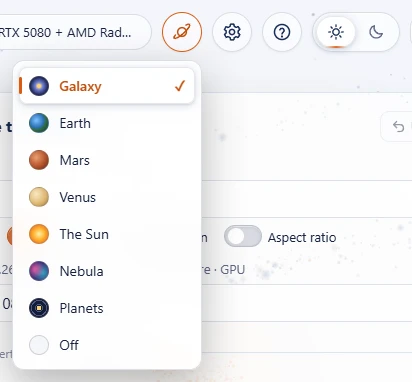
Click the planet button next to light / dark at the top and pick Galaxy, Earth, Mars, Venus, The Sun, Nebula, Planets, or Off for a plain page. Your choice is remembered in this browser. When your device asks for reduced motion, the background stays still.
How do I switch between light and dark mode?
With the sun / moon switch in the top-right corner. Until you click it, the page follows your device's setting. The help pages use the same choice.
The page moves a few pixels now and then. Is that a bug?
No, that is on purpose: the logo, buttons and cards move a few pixels in a slow circle every 90 seconds, so nothing burns into OLED screens. You will hardly notice it.
Problems
The page stays on "Detecting hardware".
Reload the page. If that does not help, clear the site's data in your browser (on an iPhone: Settings > Apps > Safari > Advanced > Website Data). If it keeps happening, the server may be starting up or unreachable.
A feature from the tutorials is missing on my server.
Some features depend on the server: HDR to SDR, burned-in subtitles and captions need certain FFmpeg parts, AI upscaling needs a graphics card with Vulkan, automatic subtitles and captions need Whisper (the installers set it up, also on Windows), and translations need extra software. The administrator can also switch some off: when upscaling is switched off in the Admin Control Panel, the Edit page has no Upscale section. The server only offers what works. Click the hardware badge to see Features on this server, or ask the administrator.
The page says it is in maintenance, or uploads are paused.
The administrator turned on maintenance mode, or the server is low on disk space. Conversions already waiting still finish. Try again later.
The preview is slow to follow my changes.
The server makes every preview frame with the real settings, so a busy server (or 4K, upscaling, many layers) takes longer. In Settings, Playback & Cache, set the preview resolution to 1/2 or 1/4: previews and played clips come quicker, and the converted file keeps its full size. Clear local preview cache there frees what this browser keeps, if its storage is full.
A keyboard shortcut does nothing.
Shortcuts are left alone while you type in a field, while a drop-down list or a window is open, and on a page they don't belong to (the razor only works in the Studio, for example). Press Esc to leave a field, or click the timeline first. Check the key in Settings, Keyboard Shortcuts: you may have changed it, and the search there finds an action by its key. Keys the browser keeps for itself (such as Ctrl+W) can't be used.
The badge says "CPU only" but the server has a graphics card.
That is for the administrator: update the graphics driver, then click the badge and Detect again. The panel shows why each encoder failed.
For administrators
Where is the Admin Control Panel?
At /admin on the same address (for example http://localhost:3000/admin). The first sign-in is admin / admin from your local network, and you must choose a new password straight away.
I forgot the admin password.
On the server, in the app folder, run node server/admin-reset.js. It resets the account to admin / admin at once, followed by a forced password change. In a Proxmox container: pct exec 104 -- runuser -u solar -- node /opt/solar-video-convert/server/admin-reset.js.
How do I add our logo as a watermark?
In the Admin Control Panel, Features: switch on Watermark / Logo in the Convert column, then open Watermark / logo under Feature settings: on every video, or optional (users can switch it off). It is laid over videos converted on the Convert page only. Upload your own picture to the library, then set the position, size, opacity and margin. Open converter pages pick up the change without reloading.
Can I switch upscaling off?
Yes: in the Admin Control Panel, Features → AI Upscaling, one switch in the Edit column and one in the Studio column. When it is off, that page has no Upscale section (the Edit page) or Upscale tab (the Studio), and the server ignores an upscale still asked for there. When it is off on both pages, the help pages follow it too: the Upscale step of the Edit tutorial and the questions about upscaling are hidden, and the steps are numbered again. Open pages pick up the change without reloading; switch it on again to bring everything back.
Can I limit formats, file sizes or how long files are kept?
Yes. Format & Codec Policies allows or blocks formats and codecs and sets a maximum resolution. Storage & Retention sets, for the Convert, Edit and Studio pages each, how long uploads and downloads are kept (a number and Hours, Days, Months or Years), the maximum upload size, and pauses uploads when the disk is nearly full. Features switches features of each page on or off. Changes take effect at once.
How do I install or update the converter?
- Windows: double-click
install-windows.cmdin the app folder (it installs Node.js, FFmpeg, Tesseract, Python and Whisper), then start it withstart-windows.cmd, or as a background service withdeploy\windows\install-service.ps1. - macOS:
sh install.sh, then./start-mac.sh(orsh install.sh --serviceto run in the background). - Linux and Proxmox: unpack
solar-video-convert.tar.gzand runsh solar-video-convert-main/install.shas root. On a Proxmox host it creates an LXC container with the graphics card passed through, or finds and updates the existing one.
The same steps update an installation: settings, statistics, admin accounts and passwords are kept. The running version is at the bottom of every page, in the Admin Control Panel and at /api/version; the README in the app folder has every option.
The converter is behind nginx (or another reverse proxy) and every visitor has the same address.
Open the Admin Control Panel through the proxy, go to System & Settings → Reverse proxy, click Add next to the proxy address it detected and press Save changes. Only trusted proxies may pass the visitor's real address and HTTPS on (X-Forwarded-For, X-Forwarded-Proto), so visitors can't fake them. IIS on the same machine is trusted already.
How many conversions run at once? Can I change the order of the queue?
In Transcoding & Hardware: Conversions at once (Auto measures what the server can do during the hardware check), a limit per user, the job timeout and the processor threads per conversion. The list there shows every running and waiting conversion of all users: cancel one, or move it up, down or to the top. The hardware acceleration (Auto-detect, a GPU type, or CPU only) is set there too.
Can I choose the speech model for automatic subtitles and captions?
Yes: Features → Automatic subtitles engine (Whisper), under Feature settings. Speech model goes from Base (fastest) through Small (the default, a good balance) and Medium to Large v3 Turbo (most accurate, needs a fast GPU); a model is downloaded the first time it is used. Run on picks the GPU or the CPU, or Auto, which measures both once per model and uses the faster one.
How do I stop new conversions for a while, for maintenance?
Switch on Maintenance mode in System & Settings and type the banner visitors see. They can't upload or convert meanwhile; conversions already waiting still finish, and signed-in administrators can still use the converter to test. Switch it off again when you are done.
Where do I see statistics, failed conversions and who changed what?
In Statistics & Audit Logs: charts of conversions per day, popular formats and codecs and the processing time per GB; visitors and sessions per hour, day, month and year, and who is active now; the error log with every failed conversion, its FFmpeg command and the full console output; and the audit log of sign-ins and changes, with the user and the address. The Overview shows what runs now and the CPU, GPU, memory and disk meters.
Can I give other people access to the Admin Control Panel?
Yes, in Users & Access Control: add accounts with the role Super Admin (everything), Operator (the queue, transcoding and the error log) or Viewer (the overview and the statistics). Accounts can be edited, disabled and deleted there. Passwords need at least 10 characters, with letters plus a digit or symbol.
How do I protect the whole site with a password?
Set ACCESS_PASSWORD in config.json and restart the converter. The browser then asks for that password (any username works). Use HTTPS when the site is reachable from the internet.
No question matches. Try another word, or read the Convert, Edit and Studio tutorials.