Convert a video, step by step
From uploading a file to downloading the result: every button on the converter page, in the order you use them. Want to change the picture, add music, subtitles or captions? That is the Edit tutorial.
1The page at a glance
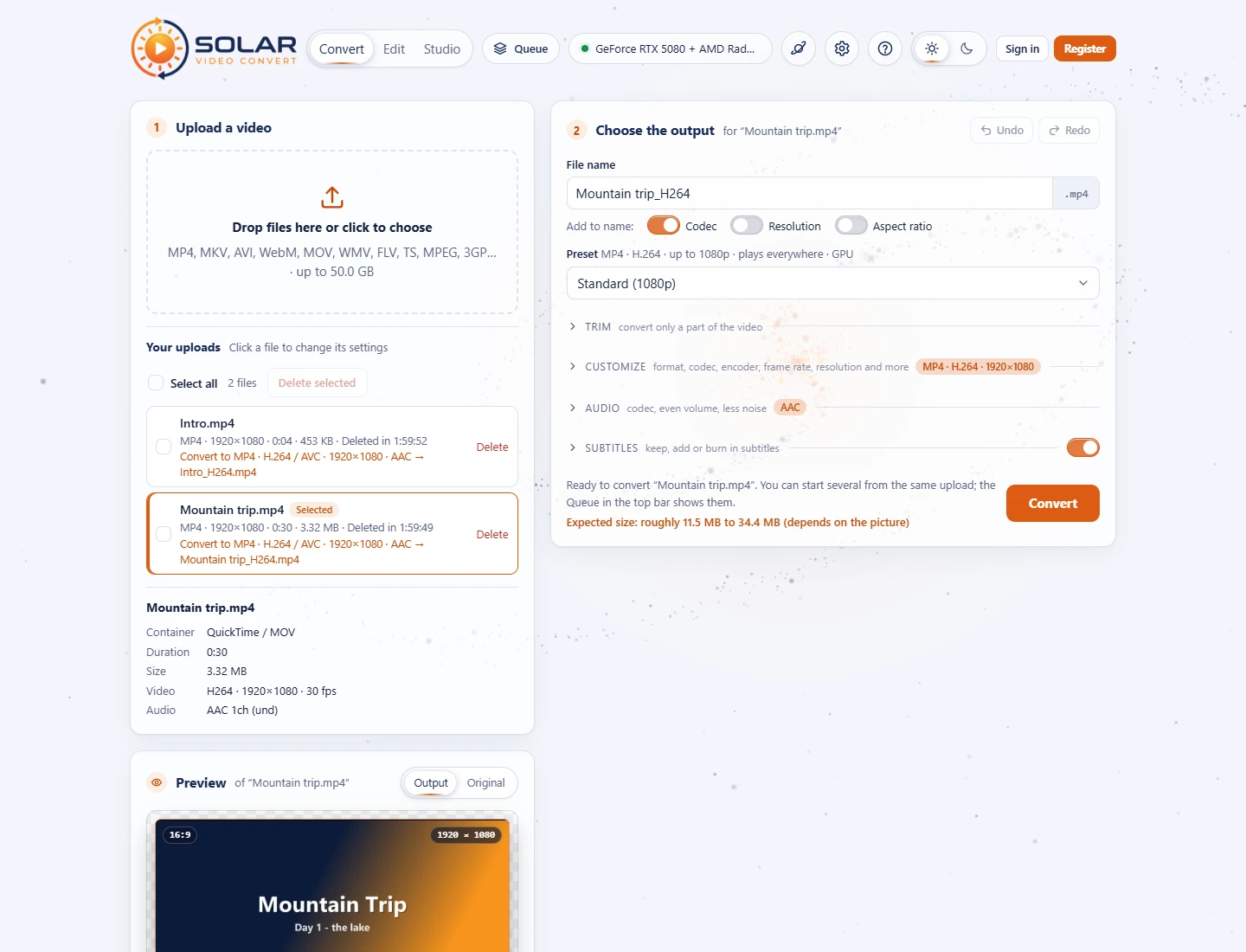
The converter works in two steps, each in its own card: 1 Upload a video and 2 Choose the output. Under your uploads you also get a live Preview of the result. What you convert goes to the Queue button in the top bar, where you download it.
Convert, Edit or Studio
The Convert / Edit / Studio switch next to the logo picks the page:
- Solar Video Convert (this tutorial): trim, convert to another format, size or quality, the sound settings and subtitles. Everything most people need.
- Solar Video Edit: everything on the Convert page plus picture changes, effects, music, automatic subtitles, animated captions and joining videos. See the Edit tutorial.
- Solar Video Studio: the Edit page's tools laid out like a video editor (after Adobe Premiere Pro), for advanced editors: projects with a bin, a Source panel, one timeline with video and audio layers, cutting instead of a Trim, Effect Controls, an Audio Clip Mixer and an export range. New editing tools are tried out there first. See the Studio tutorial.

The top bar
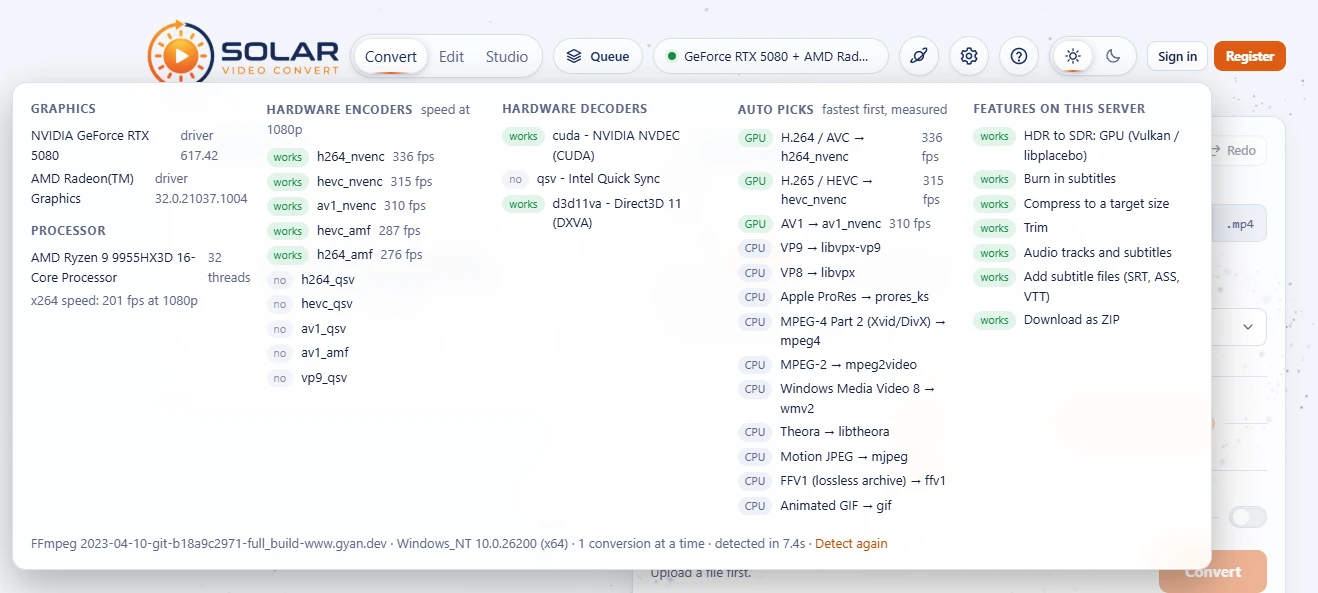
- Hardware badge (the round label with a dot): shows which graphics card (GPU) the server uses to convert. A green dot means a GPU is working; "CPU only" means the processor does the work, which is slower but gives the same result. Click it to open a popup with every encoder that was tested and how fast it is, and the features this server supports; click elsewhere or press Esc to close it. Detect again runs the test again, for example after a driver update.
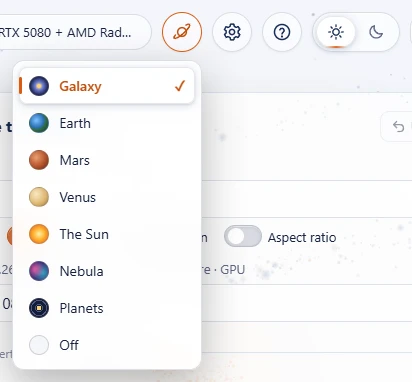
- Planet button: picks the moving background: Galaxy, Earth, Mars, Venus, The Sun, Nebula, Planets, or Off for a plain page. Your choice is remembered in this browser.
- Gear: opens Settings (also Ctrl+,): the keyboard shortcuts, the preview's resolution, what new uploads start with, notifications, the file name template, the loudness of Even volume and more. See Where are the settings?
- Question mark: opens these tutorials and the FAQ (F1).
- Sun / moon switch: light or dark mode. Until you click it, the page follows your device's setting.
2Upload a video
- Drag one or more files onto Drop files here or click to choose, or click it and pick them.
- A bar shows the upload: percentage, speed and time left. Cancel stops it.
- When it is done, the file appears under Your uploads and is selected for step 2.
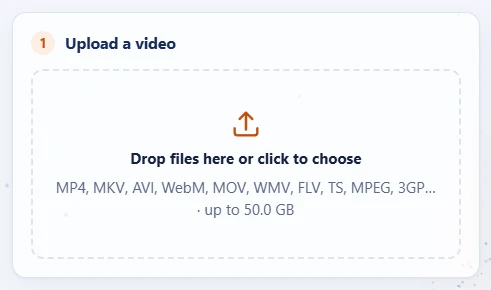
Almost any video works: MP4, MKV, AVI, WebM, MOV, WMV, FLV, TS, MPEG, 3GP and more, also sound files (MP3, WAV, FLAC...). Big files are sent in small pieces, so even files of many gigabytes upload fine.
3Your uploads
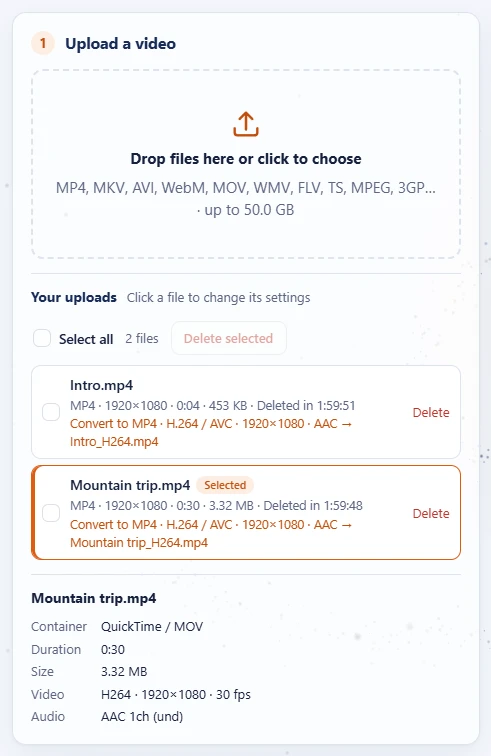
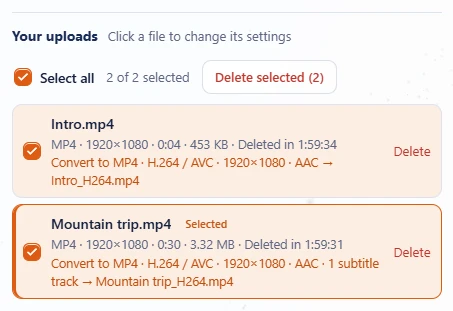
Every file you uploaded is listed with its type, picture size, length, file size and the time until it is deleted. The orange line under it says what it will become, for example Convert to MP4 · H.264 / AVC · 1920×1080 · AAC → Mountain trip_H264.mp4.
- Click a file to select it. Step 2 then shows for "file name" and that file's own settings. Every upload keeps its own settings.
- Delete removes one file; tick several (or Select all) and press Delete selected to remove them together.
- Under the list, the details of the selected file: container, length, size, video and audio codecs. The Studio page leaves these details out.
4Preview the result
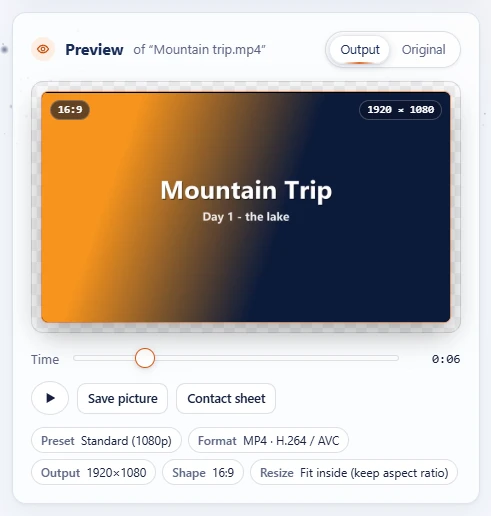
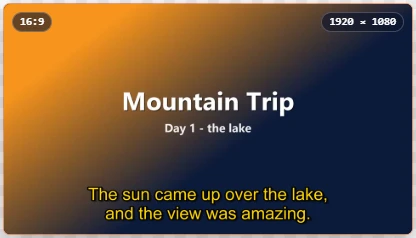
The preview shows a picture of the selected file exactly as it will look after converting: the size and shape, black bars or cropping, colours, burned-in subtitles, captions and effects. It updates by itself after every change.
- Output / Original: switch between the result and the source to compare.
- Time slider: look at another moment in the video. New effects, sounds and captions are added at this moment too.
- Play (the triangle, or Space): plays 20 seconds from the chosen moment with all your settings, with sound. J K L play backwards, stop and play; ← → step one frame; Ctrl+` shows the preview full screen.
- Save picture: downloads this moment at full size (PNG). Contact sheet: 16 small pictures spread over the video in one image (JPEG).
- The labels on the picture show the shape (16:9) and size (1920 × 1080); the row under it lists the preset and what changes.
5Name the file
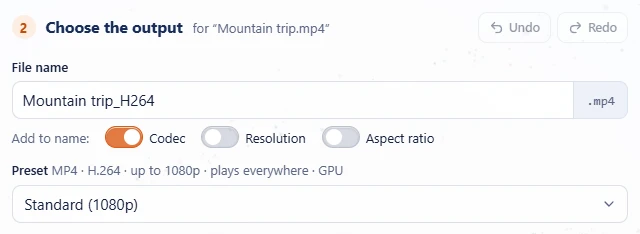
The File name is filled in for you: the original name plus the parts you switch on under it. The extension (.mp4, .mkv...) follows the format.
| Switch | Adds | Example |
|---|---|---|
| Codec | the video codec (on by default) | Mountain trip_H264 |
| Resolution | the real output size: 720p, 1080p, 4K... | Mountain trip_H264_1080p |
| Aspect ratio | the shape, with a dash: 16-9, 9-16, 1-1... | Mountain trip_H264_1080p_16-9 |
Type your own name to switch the suggestion off; switching a part on again brings it back. A file name template in Settings (Cloud Export & Notifications) can name every result the same way, with {name}, {date}, {time}, {preset} and {format}.
6Pick a preset
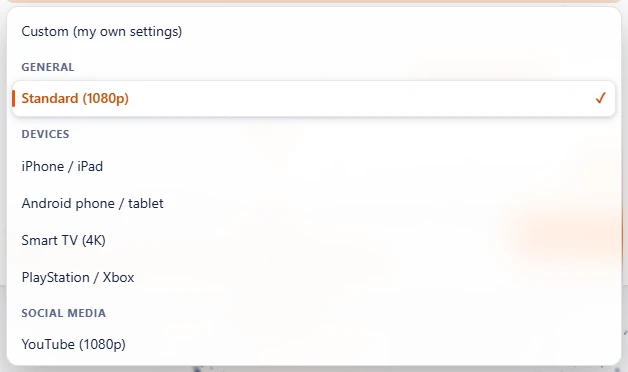
A preset fills in every setting for a device or website with one click. The default is Standard (1080p): an MP4 with H.264 up to 1080p that plays everywhere. The hint above the list says what the preset makes, and GPU when the graphics card does the work.
| Group | Presets |
|---|---|
| General | Standard (1080p) |
| Devices | iPhone / iPad, Android phone / tablet, Smart TV (4K), PlayStation / Xbox |
| Social media | YouTube (1080p and 4K), Instagram Reels / TikTok / Shorts (vertical 9:16), Instagram feed (4:5), Facebook / X |
| Share | WhatsApp, Discord (fits 10 MB), E-mail (fits 25 MB), Website (fast start) |
| Keep | Only change subtitles (no re-encoding, takes seconds), Archive (smaller, same quality: H.265 with all audio and subtitles), Video editing (ProRes), Audio only (MP3) |
Only presets this server can make are offered. Change anything afterwards and the preset shows Custom.
7Trim: convert only a part
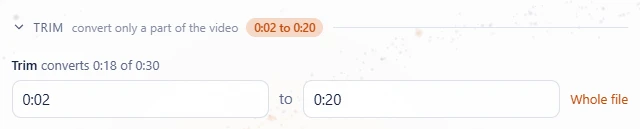
- Open Trim (click its heading in step 2).
- Type a Start and/or End time:
1:30,0:01:30.5or seconds like90. Leave one empty to start at the beginning or run to the end. - Whole file clears both times.
On the Edit page you can also add another video before or after this one here, such as an intro: see Join videos.
8Customize: format, codec, size and quality
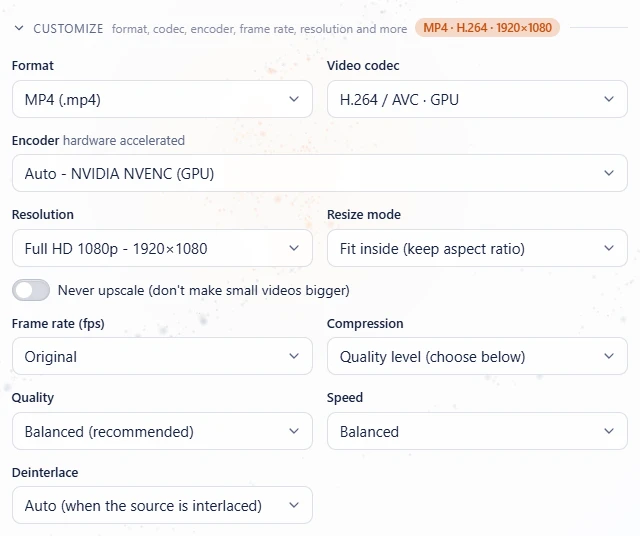
Open Customize for every setting a preset fills in. While it is closed, its heading shows the result in short, for example MP4 · H.264 · 1920×1080.
| Setting | What it does |
|---|---|
| Format | The kind of file: MP4, MKV, WebM, MOV, AVI, M4V, MPEG-TS, MPEG-PS, FLV, WMV, 3GP, OGV, animated GIF, or sound only (MP3, M4A, AAC, WAV, FLAC, OGG, Opus, WMA, AC-3). |
| Video codec | How the picture is compressed: H.264 (plays everywhere), H.265 / HEVC (half the size, newer devices), AV1, VP9, ProRes and more, or Copy to keep the video as it is (very fast). Only codecs that fit the format are listed. |
| Encoder | Auto uses the fastest graphics card for this codec; you can also pick a specific GPU encoder or the CPU. |
| Resolution | Original, or any size from 144p to 8K, vertical 9:16, square, 4:5, ultrawide, cinema (DCI) or Custom width × height. |
| Resize mode | Fit inside keeps the shape (the real size can be smaller than picked); Exact size with black bars, cropped to fill, or stretched. A note under it says when the size changes. |
| Never upscale | Keeps small videos at their own size instead of making them bigger. |
| Frame rate | Original, or 10 to 240 frames per second. |
| Compression | A quality level, a target size in MB, or a percentage of the original (see the next step). |
| Quality | Visually lossless, High, Balanced (recommended), Small file, Tiny file, or Custom (CRF: lower = better and bigger). |
| Speed | Fastest, Balanced, or Best compression (slower, smaller file). |
| Deinterlace | Removes the comb lines of old TV and camcorder footage. Auto does it only when the source is interlaced. |
| HDR | Shown for HDR videos (phones, drones): Convert to SDR gives normal colours on ordinary screens; Keep HDR keeps them as they are. |
9Compress to a target size
Need the file to fit somewhere, like a 10 MB chat limit? In Customize, set Compression to:
- Target file size (MB) and type the size: the file will be at most that big.
- Percentage of the original and pick 5% to 95% with the slider.
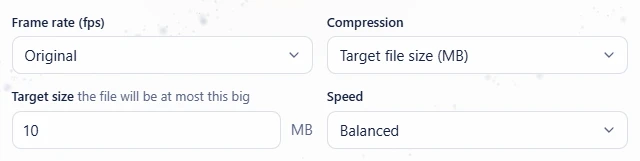

If an encoder overshoots (graphics cards can, on short or simple videos), the server converts again a little smaller by itself, so "fits in 10 MB" really fits.
10Undo and redo
Made a mistake? Undo and Redo sit at the top of step 2, or use Ctrl+Z and Ctrl+Y (or Ctrl+Shift+Z; Cmd on a Mac).

- Every change to the selected file can be undone: the preset and output settings, trim, sound, subtitles, and on the Edit page also picture, effects, sounds and captions.
- Quick changes in a row, like typing or dragging, count as one step. Up to 60 steps per file, kept while the page is open.
- Uploading or deleting files, and conversions, are not undone.
11Sound settings
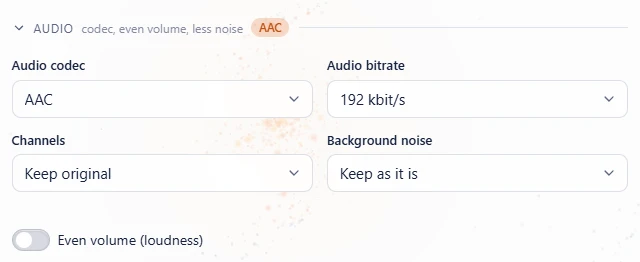
Open Audio to choose how the sound is saved:
- Audio track (for films with several languages): pick one, or keep all tracks.
- Audio codec: AAC, MP3, Opus, FLAC and more, Copy original audio (no re-encoding), or No audio to remove the sound.
- Audio bitrate: higher sounds better and makes the file bigger. 192 kbit/s is plenty for most videos.
- Channels: keep the original, or make it stereo or mono.
- Background noise: Reduce a little or Reduce a lot takes away hiss, hum and wind.
- Even volume (loudness): makes quiet and loud videos sound equally loud. It aims at -16 LUFS (web and phones); Settings (Captions & Audio) can pick -14 (streaming), -18, -23 or -24 (broadcast).
12Subtitles: keep tracks or add your own
Open Subtitles. The list shows the subtitle tracks inside the video and the files you add.
- To add your own, press Add subtitle file... and pick one or more SRT, ASS / SSA or VTT files.
- The language is recognised from the text (or from a name like
Film.nl.srt); change it in the list if needed. - With Keep as tracks, tick the tracks to keep. Players let viewers switch between them. One is marked on by default; set as default picks another.
- Click a ticked track to show it in the preview, at the moment of the Time slider.
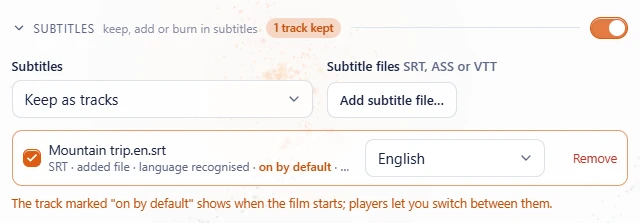
Tracks can be kept in MKV, MP4 / MOV and WebM. MKV keeps every kind, also Blu-ray and DVD picture subtitles. Choose No subtitles, or turn off the switch at the end of the Subtitles heading, to leave them all out; turning it on again brings back what you had chosen. No subtitle file at all? The Edit page can write them from the speech: Automatic subtitles.
13Burn subtitles into the picture
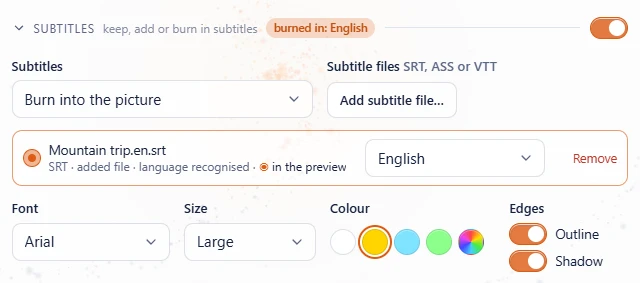
Set Subtitles to Burn into the picture when the subtitles must always show, or when the format cannot hold tracks (AVI, GIF, most social media).
- Pick the track to burn in.
- Choose the Font, Size (Small to Extra large), the colour (a swatch, or the last one for any colour), and switch the Outline and Shadow on or off.
14Watermark
When the administrator has set a watermark (a logo in a corner), it is added to every video. If the administrator made it optional, step 2 shows Add the watermark (logo): switch it off to leave it out. Without a watermark set, there is nothing to do.
15Convert
Check the line next to the button: it says which file is converted and the expected size (exact for a target size, a range for a quality level). Then press Convert.

- The page stays where it is: Conversion added to Queue shows under the Queue button in the top bar, which then counts it (Queue (1 processing)). Open it for the progress bar, speed and time left. The browser tab title shows the progress too.
- You can convert the same upload again with other settings (another format, size or trim) while the first one runs.
- Everyone shares one queue, first come first served. A waiting conversion shows its place, for example Waiting · #3.
16Several files at once
- Upload several files (choose or drop them together; they upload one after another).
- Click each file and set its output. A new upload starts with the settings you used last.
- Tick the files (or Select all) and press Convert selected (2).
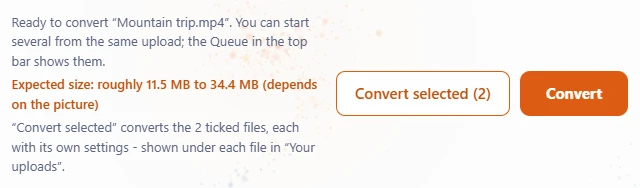
A file that cannot be made in its chosen format (a sound file to a video format, for example) is skipped with the reason; the others go ahead. To make one video of the ticked files, use Join selected on the Edit page: see Join videos.
17Download your files
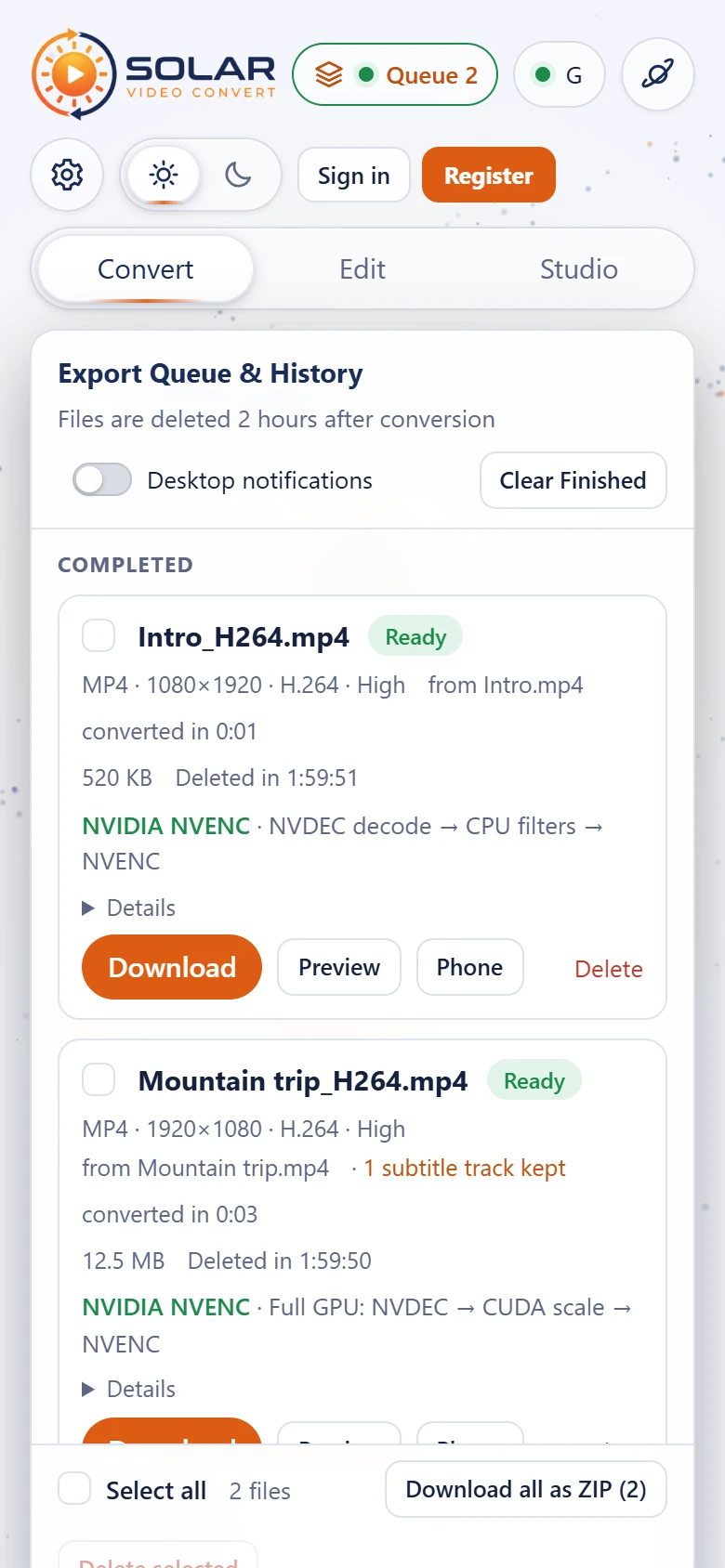
The Queue button at the top right lists everything you converted in this browser. It shows a spinner while something is converting (Queue (1 processing)) and a green dot when files are ready (Queue (2 ready)). Click it for Export Queue & History: In progress with a progress bar, the percentage and the time left, and Completed with the size, how long it took and when it is deleted. Details on a finished file shows what is really inside it (read from the converted file): format, resolution, codecs, frame rate, quality, bitrate and length. The popover does not block the page: keep working, and click elsewhere (or press Esc) to close it.
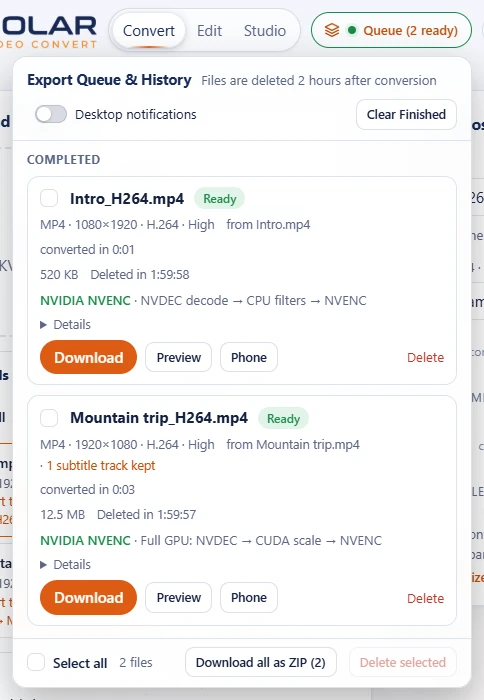
- Download saves the file (its size is next to it). A downloaded file no longer counts as ready on the button.
- Preview plays the converted file in the page.
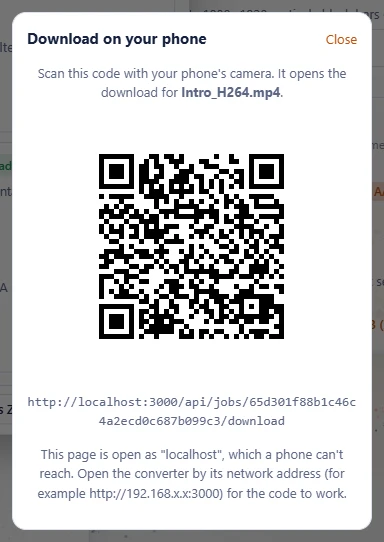
- Phone shows a QR code to download it on your phone (next step).
- Download all as ZIP saves every finished file, or only the ticked ones, in one ZIP.
- Delete removes a file now; Cancel stops a conversion that is still running. Tick several for Delete selected.
- Clear Finished takes the finished, failed and cancelled ones off the list; the files themselves stay downloadable until they expire.
- Desktop notifications (the switch at the top of the Queue): the browser tells you when a conversion is finished, even when you are in another tab. In Settings (Cloud Export & Notifications) you can also switch on Download when ready, which saves each result by itself.
18On your phone
Press Phone next to a finished file and scan the code with your phone's camera: it opens the download straight away. Your phone needs to reach the server (the same network, or the server's internet address).